Copying call notes from your office phone system into HubSpot after every conversation is the kind of busywork that eats a rep's afternoon and still leaves gaps in the contact timeline. Connect your business phone system to HubSpot once, and every call, voicemail, and dial attempt logs to the right record automatically, without anyone touching a keyboard.
- A business phone system HubSpot integration logs calls, voicemails, and notes to the contact record without manual entry.
- HubSpot's calling extension connects phone systems the same way it connects to Salesforce or Zoom/Teams for meetings.
- Phone number formatting (E.164 with country code) is the single most common reason calls fail to match a contact in 2026 setups.
- Click-to-dial takes under 15 minutes to configure once admin access and a Sales seat are confirmed.
Why this matters
A phone system that doesn't talk to HubSpot means every call is invisible to the rest of the business. Managers can't see call volume per account, marketing can't trigger a follow-up sequence off a missed call, and reps re-type the same call summary they just said out loud.
For a small office running a hosted business phone system, the fix isn't a new phone system in 2026 — it's wiring the one you already have into the CRM your sales team actually lives in. The same connection pattern SumoFiber customers use to link a hosted PBX to Salesforce applies almost identically to HubSpot.
Before you start
- A HubSpot account with at least one Sales Hub seat per user who needs click-to-dial or recording playback — the free CRM logs basic call activity, but the dialer and recordings need a paid seat.
- Admin access to your phone system's settings, including whatever panel controls call logging, webhooks, or API keys.
- The Chrome browser installed for the reps who'll use the HubSpot Sales Chrome extension, if your phone system doesn't have a native listing in the HubSpot Marketplace.
- The gotcha that trips up most setups: contact phone numbers in HubSpot have to match the exact format your phone system sends as caller ID — usually E.164 (+18015551234, no dashes or spaces). Mismatched formatting is why calls show up as "unknown caller" instead of attaching to a real contact, and it's easier to fix before you connect anything than after.
Connect your phone system to HubSpot
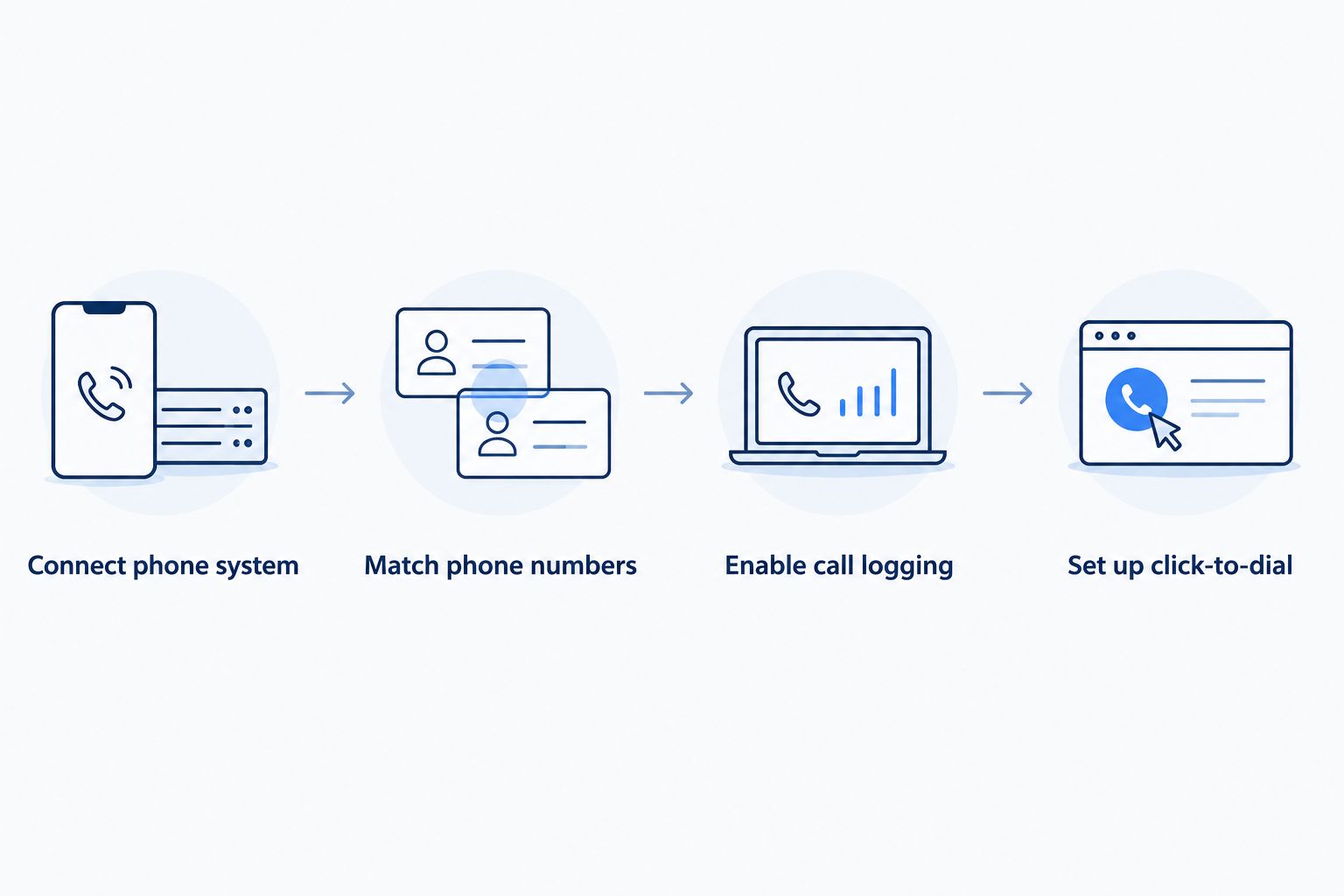
- Click the settings gear in HubSpot, then go to General > Calling.
- Under Connect a calling app, search the HubSpot Marketplace for your phone system by name. If it has a native listing, click Connect and sign in with your phone system admin credentials.
- No native listing? Install the HubSpot Sales Chrome extension instead — it drives click-to-dial and call logging through most web-based dialers even without a dedicated marketplace app.
- Confirm the connection reads Connected under Settings > General > Calling before moving on.
Expected result: placing a test call from your phone system shows a green "connected" status in HubSpot within a minute or two.
Match phone numbers so calls attach to the right contact
- Go to Settings > Properties, then find the Phone Number property on the Contact object.
- Spot-check a handful of existing contact records against the number format your phone system uses for caller ID.
- Bulk-import or bulk-edit any contacts stored with local formatting (no country code, dashes, or parentheses) so they match E.164.
Expected result: a call from a contact whose number you just reformatted logs to that exact contact record, not to "unknown caller."
Turn on automatic call logging
- In your phone system's admin panel, enable call logging or activity sync to CRM — the exact label varies by provider.
- Choose whether logged calls create a Call activity, a Task, or both. Most sales teams want calls logged as a Call activity tied to the contact and any open deal.
- Decide whether voicemail recordings and transcripts attach to the same log entry or post as a separate note.
Expected result: every inbound and outbound call appears on the contact's HubSpot timeline with duration, direction, and a recording link if you enabled it.
Set up click-to-dial for your team
- Install the HubSpot Sales Chrome extension for each rep who needs to dial straight from a record.
- Open any contact or company page — a small phone icon now appears next to the phone number field.
- Click the icon to place the call through your connected phone system. The call logs automatically once it ends, no manual entry required.
Log text messages the same way
If your phone system also handles SMS, don't leave those conversations out of the CRM. Enable SMS logging in your phone system's admin settings and map it to a Note or SMS activity type in the connected app's configuration.
Providers without native SMS sync usually need a workflow with a webhook trigger instead — HubSpot's workflow tool can catch an incoming webhook and log it as an activity on the matching contact, using the same phone-number-matching logic from the steps above. This is the same idea covered in the guide on connecting a PBX phone system to Zoom or Teams — one connection method, applied to a different channel.
Not sure your phone system is the right fit?
Compare hosted business phone options built for small offices.
Troubleshooting
- Calls log as "unknown caller" instead of a real contact. Almost always a phone number format mismatch — recheck that contact numbers match your phone system's E.164 output exactly.
- The click-to-dial icon doesn't show up. The Chrome extension isn't installed on that rep's browser, or the user doesn't have a Sales seat assigned.
- Call recordings don't play back in HubSpot. The connected app's permission scope didn't include recording access at connection time — disconnect and reconnect, granting full access when prompted.
- The same call logs twice. A native marketplace connector and a separate Zapier workflow are both running at once. Disable one; running both duplicates every log entry in 2026 setups just as often as it did in prior years.
- Calls attach to the wrong deal. When a contact has multiple open deals, HubSpot defaults to the most recently active one. Log manually to the correct deal when that distinction matters for reporting.
Customize your workflow
Once calls and texts are logging cleanly, expand the connection instead of leaving it as-is:
- Route calls to a specific pipeline stage automatically when a rep marks a call outcome as "qualified."
- Trigger a follow-up email workflow the moment a call logs with no answer.
- If your team runs client meetings over Zoom or Teams in addition to phone calls, the setup for syncing a PBX system with Zoom or Teams uses the same number-matching principle covered here.
FAQ
What's the best way to connect a business phone system to HubSpot?
Connect through HubSpot's calling settings under Settings > General > Calling, using a native Marketplace app if your provider has one or the HubSpot Sales Chrome extension if it doesn't. Both methods log calls to the contact timeline automatically once phone numbers are formatted correctly.
Do I need a paid HubSpot plan for phone system integration?
Basic call logging works on HubSpot's free CRM, but click-to-dial and recording playback require at least one Sales Hub seat. Check the seat requirement before assuming a connection has failed when it's actually a permissions gap.
Why aren't my calls logging to the right HubSpot contact?
The contact's phone number is almost certainly formatted differently than what your phone system sends as caller ID. Match both to E.164 format (country code, no dashes or spaces) and the calls will start attaching correctly.
Can HubSpot log text messages from my business phone system?
Yes, if your provider supports SMS sync natively through the connected app, or through a HubSpot workflow triggered by an incoming webhook when no native sync exists. The setup mirrors call logging, using the same phone number matching.
Is HubSpot's phone integration better than Salesforce's?
Neither is universally better — HubSpot's calling extension setup is simpler for small teams already on the free or Starter CRM, while Salesforce integrations often suit larger sales orgs with custom objects. The connection steps for a hosted PBX are nearly identical on both platforms.
How long does it take to set up a business phone system HubSpot integration?
Most setups take under an hour: 15 minutes to connect the calling app, 15 to reformat mismatched phone numbers, and the rest to test call logging and click-to-dial with a real call.
Why does the click-to-dial icon not appear on some contact records?
The Chrome extension is either not installed on that browser or the logged-in user lacks a Sales seat. Reinstalling the extension and confirming seat assignment resolves it in nearly every case.
One last thing
HubSpot logs calls to the contact's timeline by default, not to the company record — so a sales manager scanning an account for total call volume across three contacts sees nothing unless company-level activity rollup is turned on separately in Settings. It's a one-time toggle that most teams never find until a manager asks why an account with a dozen calls this month shows zero activity at the company level.