Instead of manually checking where every visitor connects, separate guest WiFi from your business network with a dedicated guest network and rules that automatically block access to office devices. This 2026 guide covers the setup, the checks that prove separation works, and the changes to make when guests need limited access to a shared resource.
- Separate guest wifi from business network using enforced isolation, not just a different WiFi name or password.
- Sumofiber offers business internet and managed WiFi; confirm guest-network controls for your equipment before configuring them.
- Guest network isolation blocks office access; client isolation also restricts connections between visitors.
- Test internet access, blocked business access, and normal staff access before publishing guest credentials.
Why this matters
A customer needs internet access, not a route to your office printer, file server, or router settings. A different WiFi name makes the networks easier to recognize. It does not, by itself, create that boundary.
Sumofiber is a fit for businesses seeking business internet and managed WiFi from one provider. Start with Sumofiber if you want those services together, then confirm the equipment and configuration needed for guest separation.
The benefit of an enforced boundary is consistency: every device joining the guest network inherits the same restrictions. The limitation is equally important. Network separation does not replace device updates, strong passwords, or secure business applications.
For your 2026 network plan, define the outcome plainly: visitors can reach the internet, while business devices remain inaccessible from the guest network.
Before you start
- Get administrative access. You need permission to manage the router or firewall, wireless access points, and any managed switches carrying guest traffic. For provider-managed equipment, have the administrator make the changes.
- Gather the network details and test equipment. Record business subnets, router addresses, shared devices, and wireless access-point locations. Use 2 test devices: one connected as a guest and one connected as staff.
- Check the whole traffic path. A guest-capable access point is not enough when its traffic returns to the ordinary business network upstream. Confirm that guest isolation works through the router, switches, and every access point involved.
Keep a configuration backup and a working administrator connection before changing network assignments. Do not make the changes through the guest connection you are about to restrict.
Control names differ by manufacturer and firmware. Follow your equipment's documented controls for the functions below; a similarly named setting is not proof that it enforces the same boundary.
Guest network design
Choose the simplest arrangement that enforces the required restrictions across your premises. A router's built-in guest feature can suit a small installation. A dedicated guest VLAN gives administrators a separate logical network to manage across compatible equipment.
| Approach | Best for | Advantage | Limitation |
|---|---|---|---|
| Built-in guest network | A small site with equipment that enforces guest isolation | Keeps configuration concentrated in the router's guest controls | Isolation behavior and access-point coverage depend on the equipment |
| Dedicated guest VLAN | A site with managed switches, multiple access points, or specific access rules | Provides a separate network with explicit firewall policy | Requires compatible equipment and consistent configuration along the traffic path |
A VLAN is a logical network boundary, not a complete security policy. Routing and firewall rules determine whether traffic can cross that boundary.
Network assignment
- Identify which network currently carries staff computers, printers, and business systems. Record its subnet and gateway address.
- Create a guest network using the router's documented guest function, or create a guest VLAN and associated subnet if your equipment supports that design.
- Choose a guest subnet that does not overlap with business networks, remote-access networks, or other routed locations. Record the chosen assignment.
- Provide guest address assignment through DHCP, the service that automatically supplies devices with network settings. Confirm that guests receive the intended gateway and DNS settings.
- Map the guest WiFi name to the guest network. Keep staff WiFi assigned to the business network, and use different credentials for each.
Expected result: A guest device joins the intended guest network rather than the staff network. In a separate-subnet design, its address belongs to the guest subnet.
A different address is useful evidence, but it does not prove isolation. The firewall checks come next.
Traffic restrictions
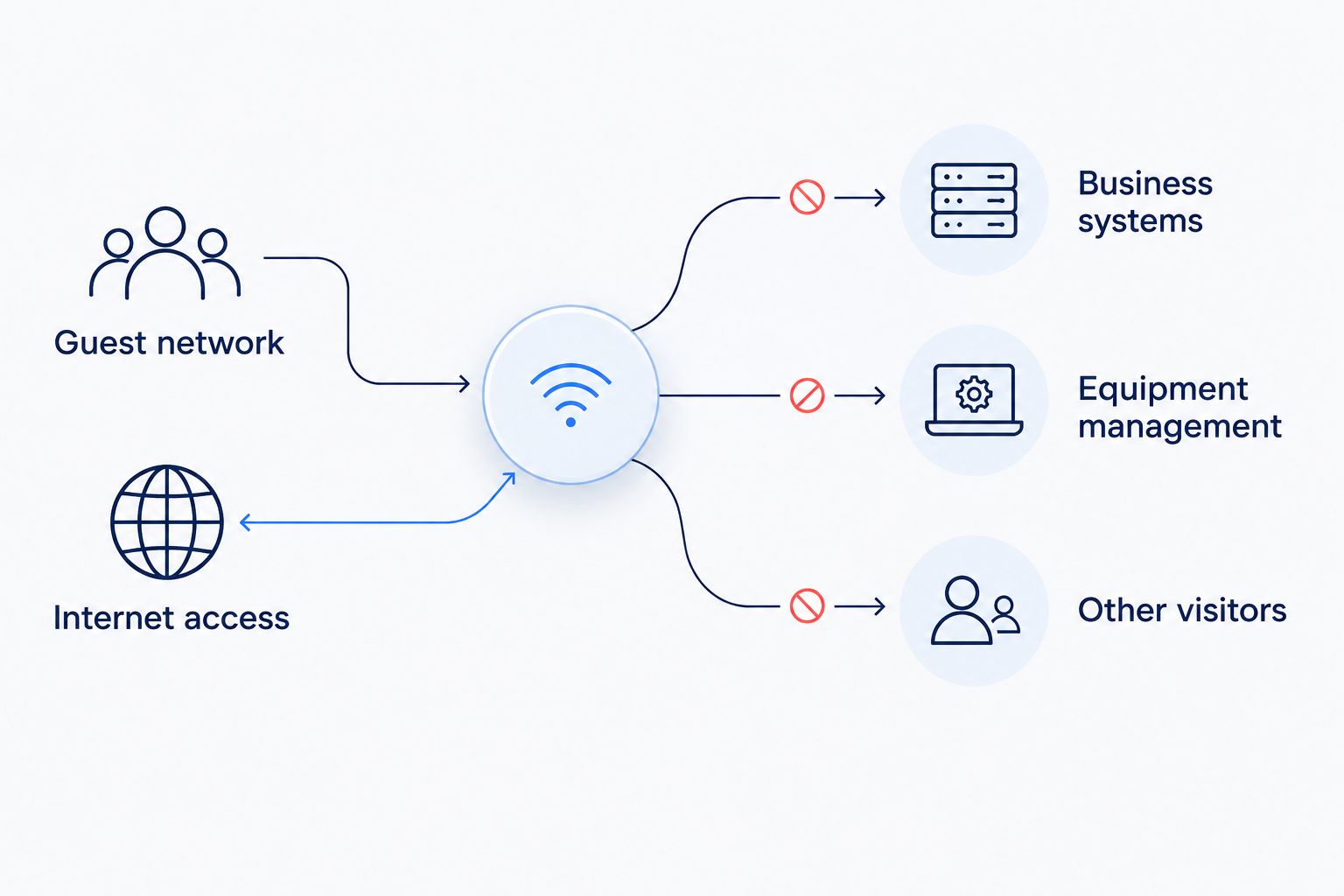
Write the policy before changing firewall rules: guests need internet access and essential network services, but not access to business systems or equipment administration.
For a 2026 deployment, cover IPv4 and IPv6 whenever both are active. An IPv4-only restriction does not define what IPv6 traffic is allowed to do.
Firewall policy
- Allow guest devices to use the network services required to connect, including the configured DHCP and DNS services. If the router supplies those services, preserve that narrowly defined access.
- Deny guest-initiated access to every internal business subnet. Include server networks, payment-device networks, management networks, and other internal destinations in scope.
- Restrict access to router, switch, and access-point administration from the guest network. Blocking business computers while leaving equipment management open is an incomplete boundary.
- Allow guest internet access according to your business policy. Check firewall rule order: a broad allow rule placed before a deny rule can defeat the intended restriction.
- Enable wireless client isolation if visitors should not communicate with one another. Check its documented scope, including whether it covers devices on different access points.
- Apply equivalent restrictions to active IPv6 traffic. If your platform cannot enforce them, resolve that limitation before treating the guest network as isolated.
Expected result: Guests can use permitted internet services but cannot initiate connections to protected internal destinations or administration interfaces.
Guest-to-business isolation and guest-to-guest isolation are different controls. Check both when visitors should have internet access without seeing either office systems or other visitors' devices.
Wireless deployment and verification
Apply the guest configuration everywhere visitors connect, not only on the access point nearest the office. A lobby, dining room, or meeting area must not quietly use a different network policy.
Access-point configuration
- Apply the guest network assignment to every participating access point. In a VLAN design, confirm that switch ports and uplinks carry the guest VLAN as required by the equipment documentation.
- Protect guest WiFi with the authentication method your equipment supports and your business requires. Do not reuse the staff password.
- Keep administrator credentials separate from both WiFi passwords. Restrict administration to the approved management connection.
- If the equipment supports configuration profiles, apply the guest profile consistently rather than recreating settings independently on each access point.
- Save the configuration and check that each access point reports the intended network assignment. Walk through the guest areas and verify which network your test device joins.
Expected result: Guests receive the same restrictions throughout the covered space. Moving between access points does not place a visitor on the business network.
Acceptance checks
Complete these 3 checks before sharing guest credentials:
- Internet access: Join guest WiFi and load an external website. Confirm normal browsing works without joining staff WiFi.
- Blocked business access: From the guest device, attempt to open a known internal service and equipment administration page using their recorded addresses. Check the firewall's logs where supported.
- Normal staff access: From the staff device, confirm that authorized business applications, printers, and internal services still work.
A failed ping alone is not proof of isolation: the destination might ignore ping on every network. Test an internal service that you have confirmed works from the staff device.
Repeat the checks from each access point, and test IPv6 where active. Record the results in your 2026 configuration notes, including the settings changed and the person responsible for maintaining them.
Expected result: Guest internet access succeeds, protected internal access fails, and normal staff work continues.
Keep separation when adding an access point
The adjacent workflow is adding coverage without rebuilding security settings from memory. Where your wireless controller supports reusable profiles, assign the existing guest network and policy to the new access point.
Before connecting visitors, confirm the new access point's uplink carries the intended guest traffic. Then repeat the acceptance checks from that access point. A copied WiFi name does not prove that its underlying network assignment was copied correctly.
For shared printing or meeting-room casting, start with the exact requirement. Identify the destination device and required service, then ask the administrator whether a narrowly scoped exception is supported. Do not allow the entire business network just to make device discovery work.
An exception adds maintenance work and weakens the original boundary. A dedicated visitor-facing device on an appropriately restricted network can avoid exposing an ordinary staff device.
Troubleshooting
Guests connect but cannot browse
Check whether the guest device receives an address, gateway, and DNS settings. A missing address points toward DHCP or network-assignment problems; working access by address but failed name lookups points toward DNS. Check the guest VLAN path and required service rules before loosening internal restrictions.
Guests can still open an office device
Check the guest WiFi's network assignment, firewall rule order, and all internal subnets. Test the destination by address rather than relying on whether its name appears in a device list. Also check IPv6 if the IPv4 policy appears correct.
Isolation works in one room but not another
Compare access-point profiles, switch-port settings, and uplinks. An access point mapped to the business network can broadcast the same guest name while providing different access. Correct the assignment, then repeat the full test from the affected room.
Visitors cannot print or cast
Guest isolation often blocks the discovery and local connections those functions require. Decide whether visitors genuinely need the service before changing policy. Use a documented, limited exception or a visitor-facing device rather than disabling isolation for everyone.
Guest devices can reach one another
Check wireless client isolation and its documented scope. Some controls apply only within an access point, so a successful same-access-point test does not establish protection across the whole site. Test with devices connected through different access points and ask the administrator to address any gap.
Customize your workflow
Make guest-network verification part of router replacements, access-point additions, and firewall changes. Keep the acceptance checklist with the configuration backup so the next administrator tests the boundary instead of assuming it survived.
For your next 2026 review, assign responsibility for guest credentials, configuration changes, and exception removal. Record why each exception exists; remove it when the underlying business need ends.
Sumofiber offers business internet and managed WiFi. Confirm who manages your specific equipment and which guest controls are included before assigning those responsibilities. The business managed WiFi guide explains the service model in more detail.
If guest traffic interferes with staff work, review traffic-management controls separately. Bandwidth limits manage capacity; they do not establish a security boundary.
FAQ
How do I separate guest WiFi from my business network automatically?
Assign guest WiFi to an isolated guest network and enforce rules that block guest access to business systems. Once configured, those rules apply to devices joining that network without individual manual setup.
Is a different WiFi name enough to keep guests separate?
No. A different WiFi name identifies a wireless network, but its underlying network assignment and access rules determine whether guests can reach business devices.
Do I need a separate internet connection for guest WiFi?
No. Guest and business networks can share an internet connection while remaining separated internally through supported network segmentation and firewall controls.
Does guest isolation stop visitors from seeing each other?
Not necessarily. Guest-to-business restrictions and wireless client isolation serve different purposes. Check the documented client-isolation scope and test devices across access points.
Can guests use an office printer without accessing everything else?
A limited exception can permit a specific printing service when the equipment supports the required controls. Define the destination and service explicitly rather than allowing general access to the business network.
Can Sumofiber help with business internet and managed WiFi?
Sumofiber offers business internet and managed WiFi. Confirm the equipment, guest-network features, and configuration responsibilities for your installation before planning the setup.
How do I know the guest network is actually isolated?
Test a known working internal service from both staff and guest devices. Staff access should succeed and guest access should fail, while guest internet browsing continues to work. Repeat across access points and active IP versions.
One last thing
Test isolation by address, not just by what disappears from a device list. Blocking discovery can hide a printer or server without blocking direct connections to it. Keep a known internal destination in your test checklist so the next change gets a meaningful check.