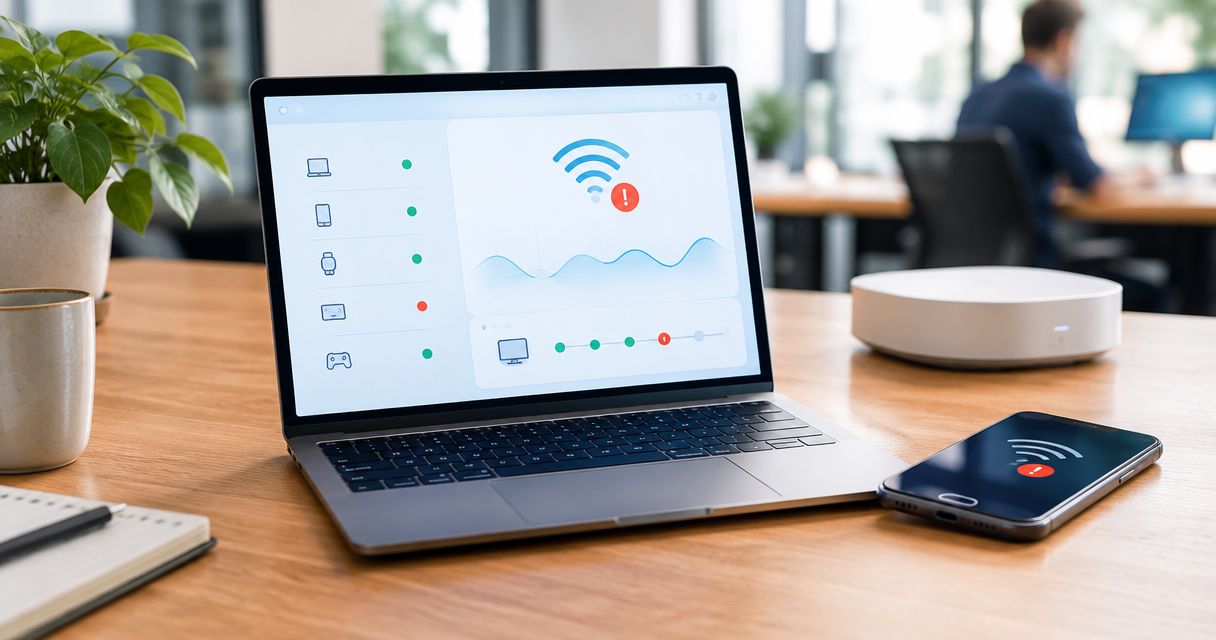
Checking your phone every hour to see if the shop's point-of-sale terminal is still online wastes time you don't have. Set up managed WiFi device alerts instead, and SumoFiber's app tells you the second that terminal, camera, or thermostat drops off the network, before a customer notices anything is wrong.
- Managed WiFi device alerts notify you within minutes of a chosen device going offline on SumoFiber managed WiFi.
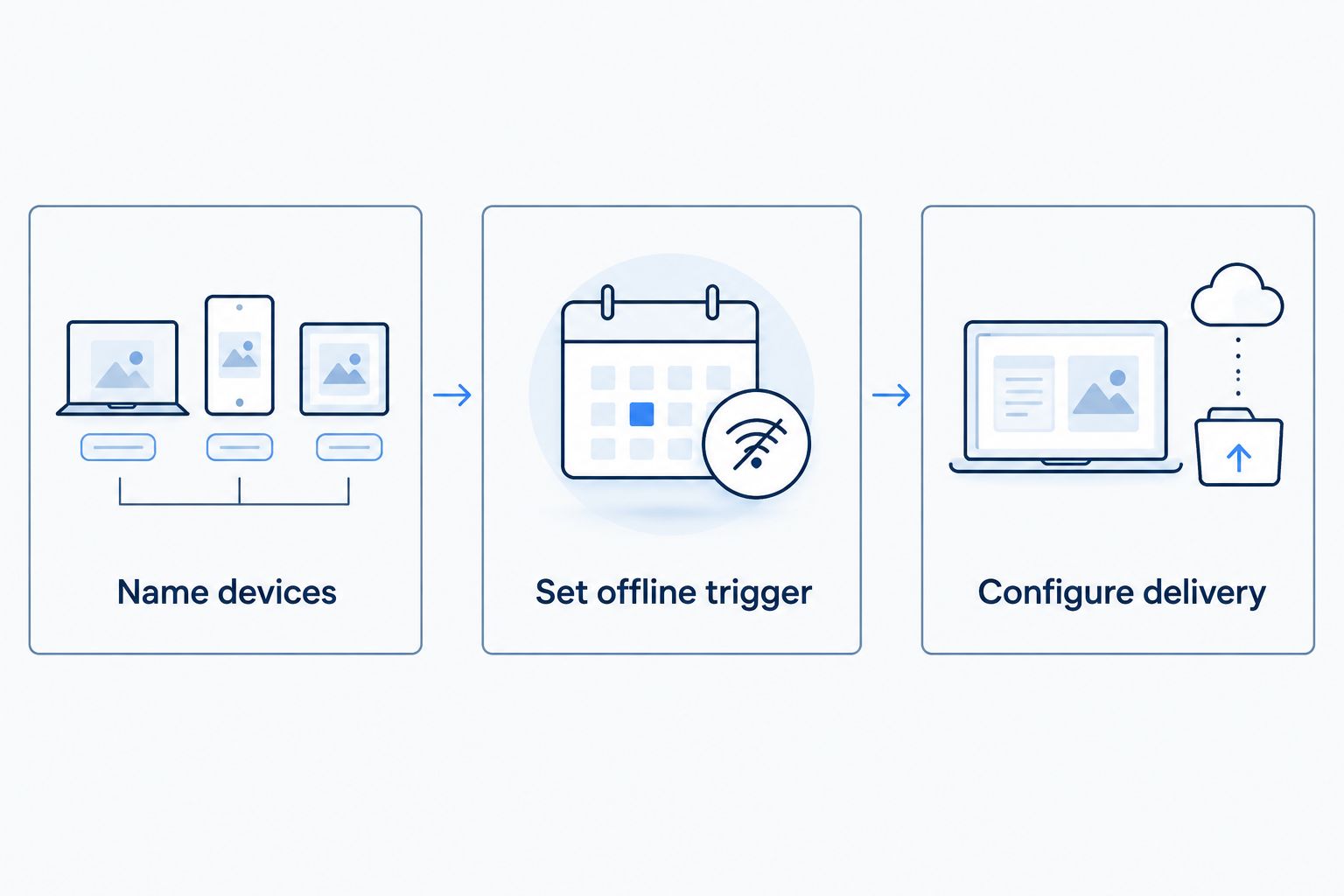
- Setup takes three steps: name your devices, set the offline trigger, then pick how you want to be notified.
- Works for security cameras, POS systems, medical office equipment, or any single device that can't go quiet without you knowing.
- A second variant flags new devices joining your network, useful for catching unauthorized WiFi guests.
- Available through the SumoFiber managed WiFi app for accounts on a managed WiFi plan in 2026.
Why this matters
A dropped WiFi connection on a smart TV is annoying. A dropped connection on a restaurant's card reader or a clinic's imaging workstation is a lost sale or a missed appointment. Managed WiFi for business exists specifically so someone finds out about the disconnect before a customer does, not after.
Most people only learn a device dropped off when they go looking for it, which means the problem sat unnoticed for however long it took someone to notice. Managed WiFi device alerts flip that: the network tells you, you don't ask the network. That's the entire point of running managed WiFi instead of a bare router in 2026 — someone, or something, is watching so you don't have to.
Before you start
- A managed WiFi plan with app or portal access. This feature lives inside the SumoFiber managed WiFi app, not on a generic router admin page.
- The device already connected to your network at least once. It needs to show up in your device list before you can attach an alert to it.
- The gotcha that trips people up: new devices show up under a generic factory name — something like "Espressif_4F2A" or "AndroidAP-9C1" — until you rename them. Set an alert on an unnamed device and you'll get a notification at 2am with no idea which device it's about. Rename first, alert second.
Name and group your devices
Do this before anything else. An alert is only useful if you know what it's alerting you about.
- Open the SumoFiber managed WiFi app and tap Devices.
- Find the device in the list — look for its MAC address or connection time if the factory name doesn't help.
- Tap the device, then tap Rename, and give it a plain label: "Front Counter POS," "Back Room Camera," "Reception Desk PC."
- If you're managing several related devices — say, four cameras — tap Add to Group and group them under one label.
Expected result: your device list shows real names instead of strings of letters and numbers. If you can read the list and immediately know what's what, you're ready for the next section.
Set up your device alert trigger
- From the device's detail screen, tap Notify Me.
- Choose Device Offline as the trigger type.
- Set the disconnect window — how long the device has to be gone before it counts as offline. Two minutes is a reasonable starting point for anything business-critical.
- Tap Save.
Expected result: a small bell icon appears next to the device name in your device list, confirming the alert is live.
Configure notification delivery
- Go to Settings, then Notifications.
- Toggle on Push Notifications, Email Alerts, or Text Alerts — pick as many as you actually check.
- On a business account, tap Add Contact to send the same alert to a second staff member or manager.
- Tap Save Preferences.
Expected result: the app sends a test notification to confirm delivery. If it doesn't arrive within a minute, check the troubleshooting section below before assuming setup failed.
Get alerted when a new device joins instead
The adjacent workflow worth setting up alongside offline alerts: New Device Connected notifications. Instead of watching for something leaving your network, you watch for something showing up that shouldn't be there.
- From Devices, tap the + or Alerts icon at the top of the screen (not tied to a single device).
- Choose New Device Connected as the trigger.
- Select which network to monitor — your main network, or a separate guest network if you run one for a restaurant, waiting room, or retail floor.
- Save and confirm delivery the same way as above.
This matters most for restaurant and hospitality WiFi setups, where a guest network handles dozens of unknown devices a day and you want to know if something unusual connects to the wrong network segment.
Set up managed WiFi device alerts
See if your plan includes managed WiFi and app-based device alerts.
Troubleshooting
Alert never arrives even though the device is clearly offline. Check the disconnect window. If it's set to 30 seconds, a normal brief WiFi hiccup can reset the timer before the alert fires. Push it to 2-5 minutes for anything that isn't truly urgent.
You're getting too many alerts from the same device. Some devices power-cycle on their own — a smart plug on a nightly schedule, a printer that sleeps and reconnects. Either exclude it from alerts or extend the disconnect window past its normal reconnect time.
Notifications show MAC addresses instead of names. You set the alert before renaming the device. Go back to Devices, rename it, and the next alert should use the new label.
Text alerts aren't showing up. Confirm the phone number under Settings > Notifications is current. Some carriers filter automated texts as spam — check push notifications as a backup while you sort that out.
A second staff member isn't getting business account alerts. Confirm they were added under Add Contact with the correct role. Adding an email address alone without setting a delivery method won't trigger anything.
Customize your workflow
Once offline alerts are running, most businesses layer on two more things. First, pair device alerts with a network-level failover so a single dropped device alert doesn't turn into a full outage — see how to automatically switch to cellular backup when fiber drops for that setup. Second, if alerts keep firing because the WiFi itself is weak in one part of the building rather than a device failing, run through the SumoFiber speed test to faster WiFi workflow to find and fix the dead zone before it keeps tripping alerts.
Managed WiFi device alerts aren't a one-time setup you forget about. Revisit the device list every few months, rename anything new, and retire alerts on devices you've replaced. A list of ten named, monitored devices in 2026 is more useful than a list of forty half-named ones nobody checks.
FAQ
What are managed WiFi device alerts?
Managed WiFi device alerts are notifications sent through the SumoFiber managed WiFi app when a specific device disconnects from or joins your network. They replace manually checking the device list to see what's still connected.
How do I get notified when a device disconnects from WiFi?
Open the device's detail screen in the managed WiFi app, tap Notify Me, and set the trigger to Device Offline. Choose a disconnect window and save, then confirm the delivery method under Settings.
Can I set alerts for specific devices only?
Yes. Alerts are set per device or per named group, not for the whole network at once. You choose exactly which devices matter enough to monitor.
Is managed wifi device alerts available on residential plans?
The feature lives inside the SumoFiber managed WiFi app for accounts with managed WiFi service. Check your plan details in the app to confirm what's included for your account.
How fast do offline alerts arrive?
Delivery depends on the disconnect window you set, which can be as short as a couple minutes. A shorter window means faster alerts but a higher chance of false triggers from brief WiFi blips.
Can I get an alert when a new device joins my network?
Yes, set a New Device Connected trigger instead of Device Offline. This is separate from device-specific alerts and monitors the whole network or a chosen guest network.
Why do I keep getting false offline alerts?
A disconnect window that's too short catches normal brief signal drops as full outages. Extending the window to a few minutes usually clears up false alerts without missing real ones.
Does managed wifi device alerts cost extra?
The alerting feature is part of the managed WiFi app for accounts already on managed WiFi service. Check your current plan in the app to confirm what's included.
One last thing
The device most worth alerting on is usually the one nobody thinks to check: a backup camera, a card reader in a back office, a router-connected door lock. Those are the devices that stay offline for days before anyone notices, precisely because checking on them isn't part of anyone's routine. Set the alert once, and it becomes part of the routine for you.