
Your WiFi router needs replacing when its manufacturer no longer provides security updates, it repeatedly fails after basic troubleshooting, or its hardware cannot support the connection you need. Slow WiFi alone is not proof: first separate a router problem from weak coverage, a faulty device, or an internet service outage.
- How do I know if my WiFi router needs to be replaced? Check security support and repeatable failures first.
- Compare Ethernet and WiFi on the same device before blaming your router for slow internet.
- Keep a supported router that works reliably; fix placement before replacing equipment for distant-room problems.
- Sumofiber offers managed WiFi for households and businesses that want an alternative to managing WiFi themselves.
How do I know if my WiFi router needs to be replaced?
Replace your router for a confirmed support or hardware problem, not simply because a video buffered. A useful diagnosis shows where the connection fails and whether the problem affects more than one device.
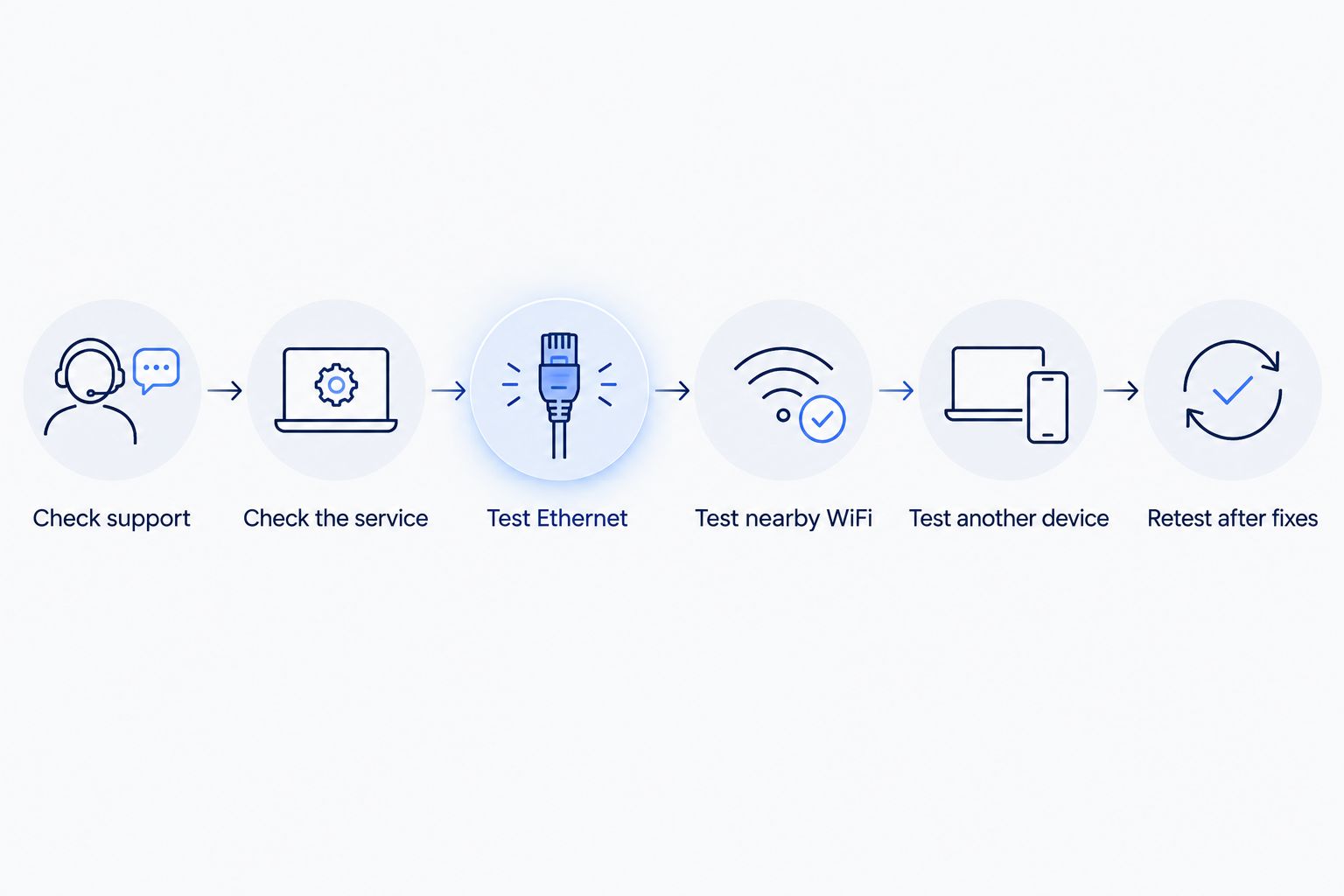
Use this sequence before shopping for equipment. For the testing details, see how accurate an online internet speed test is.
- Check support. Find the exact model and hardware revision on the router label. Check the manufacturer's official support information for current firmware and any end-of-support notice. A router that no longer receives security fixes needs a replacement plan even when its connection still feels fast.
- Check the service. Ask your internet provider whether there is an outage or a problem with the incoming connection. A replacement router does not repair a failed connection upstream. Note the status lights, but interpret them using the equipment's documentation rather than assuming every red light means the same thing.
- Test Ethernet. Connect a computer to a LAN port on the router with a known-good Ethernet cable. Pause large downloads and run a test. Keep the computer, test service, and background activity consistent when comparing results.
- Test nearby WiFi. Use the same computer close to the router, then repeat the test wirelessly. If Ethernet works reliably but nearby WiFi repeatedly fails, focus on wireless settings, interference, firmware, and the router's radio rather than immediately changing your internet plan.
- Test another device. Repeat the nearby WiFi check with another phone or computer. One struggling laptop does not establish a router fault. Problems across different devices provide stronger evidence of a network issue.
- Retest after fixes. Follow the manufacturer's restart and update instructions, check cables, and keep ventilation openings clear. If the same failure returns under comparable conditions, record what happened and contact support before deciding which equipment to replace.
These checks work in 2026 without relying on a router's age as a shortcut. The point is to identify a repeatable fault, not to turn one speed-test result into a purchase decision.
Why this matters
Replacing the wrong equipment leaves you with the same problem. A router in a closed cabinet still has a coverage disadvantage after you swap it for a newer one; an upstream outage still interrupts a new router.
Keep two questions separate: Is your internet connection reaching the router reliably, and is the router delivering it reliably to your devices? Ethernet and nearby WiFi comparisons help you answer those questions without asking everyone in the house to change how they use the internet permanently.
For a 2026 replacement decision, security support matters alongside performance. A router does not have to stop working before it becomes unsuitable to keep using.
Which symptoms actually point to a failing router?
The same symptom can have different causes. Use the pattern, not the inconvenience, to choose your next move.
| Symptom | What it tells you | Best next check |
|---|---|---|
| Only one phone or laptop disconnects | The problem is not yet isolated to the router | Update and test that device on another network |
| WiFi works nearby but fails in a distant room | Coverage needs attention; router failure is unproven | Move the router into an open position and retest |
| Ethernet works but nearby WiFi fails across devices | The wireless part of the network needs investigation | Check firmware, wireless settings, and interference |
| Ethernet and WiFi both fail | The fault could be in the service, router, cable, or power supply | Check service status and connections with support |
| The router repeatedly restarts without your instruction | Power, firmware, ventilation, or hardware needs attention | Check the approved power supply and manufacturer guidance |
| The manufacturer confirms security support has ended | Continued use lacks future manufacturer security fixes | Plan a supported replacement |
A restart that temporarily restores service is useful evidence, but it is not a diagnosis by itself. Record whether the fault returns during ordinary use, after a particular device connects, or only when the whole household is busy.
Do not replace your router solely because it feels warm. Keep it ventilated and follow its safety instructions; unusual smells, visible damage, or a damaged power supply require you to stop using the affected equipment and seek manufacturer guidance.
When should I keep, reposition, or replace my router?
Choose the action that matches the evidence. Each option solves a different problem, and each has a limit.
| Option | Best for | Benefit | Limitation |
|---|---|---|---|
| Keep and update | A supported router that remains reliable | Avoids replacing equipment that already meets your needs | Updates cannot remove a physical hardware limit |
| Reposition | Weak WiFi mainly in distant rooms | Addresses obstructions and poor placement | One location might not cover the whole property |
| Add access points | A supported network with gaps in coverage | Brings WiFi closer to the rooms that need it | Requires planning and compatible equipment |
| Replace | Unsupported equipment or a confirmed router fault | Addresses the specific support or hardware problem | Does not fix an outage, faulty client device, or poor placement |
| Use managed WiFi | People who want provider-managed WiFi | Offers an alternative to maintaining WiFi yourself | You still need to confirm equipment, responsibilities, and service terms |
Keep a reliable, supported router unless you have identified a reason it cannot meet your needs. If the kitchen works but the upstairs office does not, coverage is the first problem to solve.
Replacement and better coverage are not interchangeable. Ask where the signal needs to reach before asking which router to buy.
How do security updates affect the replacement decision?
Check the manufacturer's support page for your exact model, not just the product family. Hardware revisions can have different firmware files and support instructions. Follow the documented update process and avoid firmware from unofficial download sites.
A router that reports current firmware is not necessarily still receiving future updates. Look for an explicit support status or end-of-support notice, and ask the manufacturer when the information is unclear.
In 2026, confirmed loss of security support is a reason to replace a router even when streaming still works. Installing the last published update does not extend the manufacturer's support commitment.
Before changing equipment, save the settings you need to recreate, such as the network name, guest network configuration, and any documented business requirements. Treat exported configuration files as sensitive information rather than sharing them publicly.
Can an old router limit a fast internet connection?
Yes. Ethernet port speeds and wireless capabilities place limits on what a router can deliver, regardless of the internet plan feeding it.
For example, a 100 Mbps Ethernet port cannot carry a 1 Gbps connection at its full rate. Check both the WAN port that connects toward your provider and the LAN port used by your computer. A slow Ethernet adapter or a damaged cable can also affect the comparison.
Wireless bands matter, too. 2.4 GHz WiFi generally reaches farther but shares crowded radio space with other devices; 5 GHz WiFi generally provides more capacity at shorter distances. Those characteristics help explain why a device behaves differently across rooms, but neither band guarantees a particular speed.
Do not compare the large wireless rate printed on a box directly with the download rate of one laptop. Advertised wireless rates describe radio capabilities under specified conditions, not a promise that every device receives that rate through walls.
For your 2026 decision, check actual port specifications, compatible devices, and performance where you use the connection. A newer label alone does not establish that replacement will solve the problem.
Why router performance varies around your home
The connection your laptop receives depends on more than the router's condition. Check these factors before treating uneven performance as equipment failure:
- Distance and obstructions. Walls, floors, furniture, and enclosed storage affect wireless signals. Compare a nearby test with a test in the room where the problem occurs.
- Radio interference. Nearby networks and other radio devices share wireless space. Follow manufacturer guidance on channel selection rather than changing settings at random.
- Device capabilities. A phone, laptop, and television can support different wireless features. A single older device is not a reliable measure of everything the router can deliver.
- Simultaneous activity. Downloads, uploads, streaming, and calls use the same connection. Test with background activity paused, then check how the network behaves during normal household use.
- Cables and power. A damaged cable, loose connection, or unsuitable power adapter can imitate a router problem. Use the equipment and power specifications the manufacturer requires.
- Firmware and settings. Software faults or configuration changes can affect connectivity. Check updates and document settings before making changes you cannot easily reverse.
These checks explain the problem rather than excuse it. If supported equipment still fails after you have isolated the service, devices, and connections, replacement becomes a more grounded decision.
Should I factory-reset my router before replacing it?
A factory reset is a later troubleshooting step, not the first response to slow WiFi. It removes custom settings and can leave you disconnected until the router is configured again.
Before resetting, ask your provider whether the connection requires credentials, special settings, or provider-managed equipment. Save the information needed to reconnect your devices, and follow the manufacturer's reset instructions exactly.
A normal restart and a factory reset are different actions. Do not press and hold a reset button just because someone suggested rebooting.
Do I need a new router if only one room has bad WiFi?
No. WiFi that works close to the router but fails in one room points first to a coverage problem, not proof that the router is worn out.
Move the router into an open location, away from enclosed cabinets, and test the problem room again. If placement cannot provide the coverage you need, discuss additional access points or a suitable whole-home setup rather than buying a replacement without a coverage plan.
An Ethernet connection is also worth considering for a stationary work computer. It avoids the wireless path for that device, though it does not improve WiFi for the rest of the house.
Who can help if I do not want to manage WiFi myself?
Sumofiber managed WiFi is best for households and businesses that want an alternative to managing WiFi themselves. Sumofiber offers fiber internet and managed WiFi alongside TV, home phone, and mobile services.
Start with Sumofiber and describe the pattern: which devices disconnect, where it happens, and whether Ethernet stays connected. Ask what equipment and support the managed WiFi service includes before deciding; the service category alone does not establish its exact features or terms.
The trade-off is responsibility. Managing your own supported equipment gives you control over its configuration, while provider-managed WiFi means you need to understand which changes and troubleshooting tasks the provider handles.
FAQ
How do I know if my WiFi router needs to be replaced?
Replace your WiFi router when security support has ended, a router fault persists after troubleshooting, or its hardware limits prevent it from meeting your needs. Compare Ethernet and nearby WiFi across devices before blaming the router.
How often should I replace my WiFi router?
Replace your WiFi router based on support status, reliability, and hardware limits rather than a fixed age. A supported router that works reliably does not need replacement simply because it is old.
Does slow WiFi mean my router is dying?
Slow WiFi does not prove your router is failing. Weak coverage, interference, device limitations, background downloads, and service problems can produce similar symptoms.
Is it normal for a router to feel warm?
Warmth alone does not prove a router has failed. Keep ventilation openings clear, follow manufacturer guidance, and stop using equipment with visible damage or unusual smells.
Will a new router fix my internet dropping out?
A new router fixes dropouts only when the router is the cause. Check service status, cables, power, and more than one device before replacing it.
Should I reboot or factory-reset my router?
Try a documented restart before considering a factory reset. A factory reset removes custom settings and requires you to configure the connection again.
Can managed WiFi help me avoid troubleshooting alone?
Managed WiFi provides an alternative to maintaining WiFi yourself. Sumofiber offers managed WiFi; confirm the included equipment, support responsibilities, and service terms before choosing it.
One last thing
Before contacting support, write down one useful contrast: Ethernet works but WiFi fails, nearby WiFi works but the office fails, or every device disconnects together. That description is more actionable than saying the internet is slow.
For your 2026 router decision, buy against a diagnosed problem, not a birthday. Security support, repeatable failures, and verified hardware limits are the reasons to replace equipment.