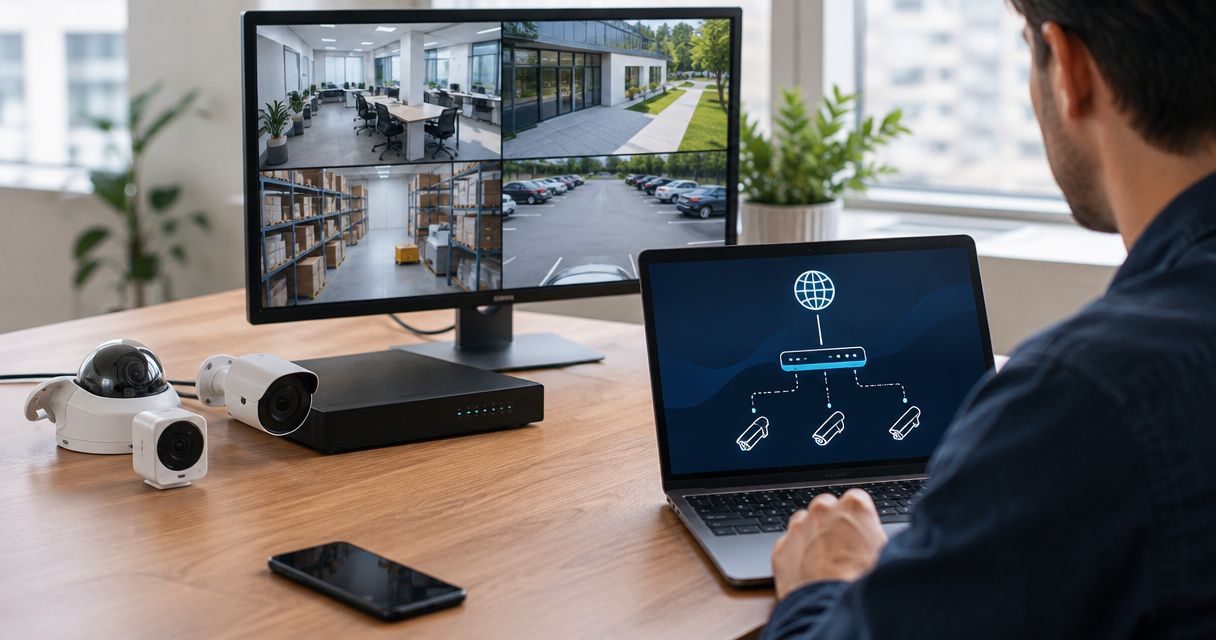
Instead of manually changing remote-viewing settings when your internet address changes, connect security cameras to static IP business internet through a VPN so authorized staff can reach the recorder without exposing camera logins publicly. This 2026 guide covers the public address, local camera network, firewall rules, and off-site tests you need before relying on remote viewing.
- Connect security cameras to static IP business internet through a VPN; keep cameras and recorders on private addresses.
- SumoFiber provides business internet and managed WiFi; confirm static IP provisioning and equipment responsibilities before setup.
- Reserve the recorder’s local address, restrict access, and test live video plus playback from outside the building.
- A static public IP provides a stable destination, not encryption, user authentication, or automatic camera security.
Why this matters
Your public internet address and a camera’s local address do different jobs. The public address gets an authorized connection to your business firewall; the private address identifies the recorder or camera inside your building.
Put the static public IP at the business firewall, not directly on each camera. A network video recorder, or NVR, can collect camera footage locally while a VPN provides the remote route to that recorder.
SumoFiber is a fit for businesses seeking internet and managed WiFi from the same provider. Camera configuration remains a separate responsibility: establish who manages the firewall, recorder, and remote-access accounts before changing settings.
Before you start
- Gather access and equipment details. You need authorized access to the business router or firewall, camera recorder, camera administration accounts, and a supported VPN client. Have current configuration backups and the equipment manuals ready.
- Confirm the internet handoff. Ask your provider whether the service has a publicly routable static IPv4 address, how it is assigned, and which device receives it. A reserved private address is not a public static IP; carrier-grade NAT or an upstream router can prevent unsolicited inbound connections.
- Check the recorder’s network layout. Cameras connected to an NVR’s built-in Power over Ethernet ports can sit on a separate internal network. Remote users often need access only to the recorder, not a route to every camera.
The steps below describe configuration tasks rather than a particular manufacturer’s interface. Use the matching controls in your equipment manual; menu names, required fields, and VPN capabilities differ by model and firmware.
Choose your remote-access method
For a 2026 installation, choose the access method before creating firewall rules. A static IP supports a stable endpoint, but it does not make every access method equally suitable.
| Method | Best for | Advantage | Limitation |
|---|---|---|---|
| Business VPN | Staff who need controlled access to a private recorder | Keeps camera services off the public internet | Requires compatible equipment, user setup, and access rules |
| Manufacturer cloud access | Teams using a supported camera app | Can work without inbound port forwarding or a static public IP | Depends on the manufacturer’s service, account security, and device support |
| Direct port forwarding | Documented legacy integrations without a suitable alternative | Routes an external connection to a specific internal service | Exposes that service publicly and needs careful security review |
Use the business VPN workflow when your equipment supports it. Manufacturer cloud access is a separate option, not an extra step you must enable. Do not leave both methods active without a reason and an owner for each.
Direct port forwarding is not the default workflow here. Changing an exposed service’s port number does not replace authentication, encryption, updates, or access restrictions.
Public IP and firewall handoff
- Record the assigned settings. Obtain the public address and the provider’s handoff instructions. A manually configured connection can require a subnet mask or prefix length and gateway; a provider-managed assignment can use a different process. Do not guess these values.
- Identify the edge firewall. Determine which device controls incoming internet traffic. If a provider gateway sits ahead of your firewall, establish whether it uses bridge mode, IP passthrough, or another documented arrangement before making changes.
- Apply the assignment as instructed. Keep an on-site recovery option while changing WAN settings. An incorrect gateway or address can disconnect the business and your remote administration session.
- Check the resulting connection. Verify internet access from the business network. Compare the firewall’s WAN address with the provider’s assignment and investigate any unexpected mismatch before configuring inbound access.
Expected result: The correct edge device receives the assigned public address, internet access works, and you know whether another router sits upstream.
For your 2026 network record, save the handoff details somewhere authorized administrators can find them. Store passwords and private keys separately in an approved password manager, not in the general network diagram.
Camera network and recorder addresses
- Confirm local recording first. Open the recorder from an authorized device on the business network. Check live video and play back a recent recording before introducing remote access.
- Stabilize the recorder’s address. Create a DHCP reservation on the device serving that network, or configure a manual address using your network administrator’s addressing plan. Keep manually assigned addresses outside the dynamic pool unless your DHCP system explicitly handles that arrangement.
- Separate camera traffic. Where supported, place cameras and the recorder on a dedicated VLAN or firewall zone. Keep guest WiFi out. Permit only the camera-to-recorder and administration traffic your installation requires.
- Secure device accounts. Replace default credentials, install supported firmware updates, and create named accounts. Give routine viewers viewing rights rather than administrator access.
- Check recording details. Confirm the recorder’s clock, time zone, storage status, and recording schedule. Allow necessary time synchronization through your firewall policy rather than opening unrestricted network access.
Expected result: The recorder stays at a predictable private address, records correctly, and cannot be reached from guest WiFi.
Start with 1 camera when validating a changed network rule, then repeat the check across the remaining cameras. This isolates configuration mistakes without changing the whole installation at once.
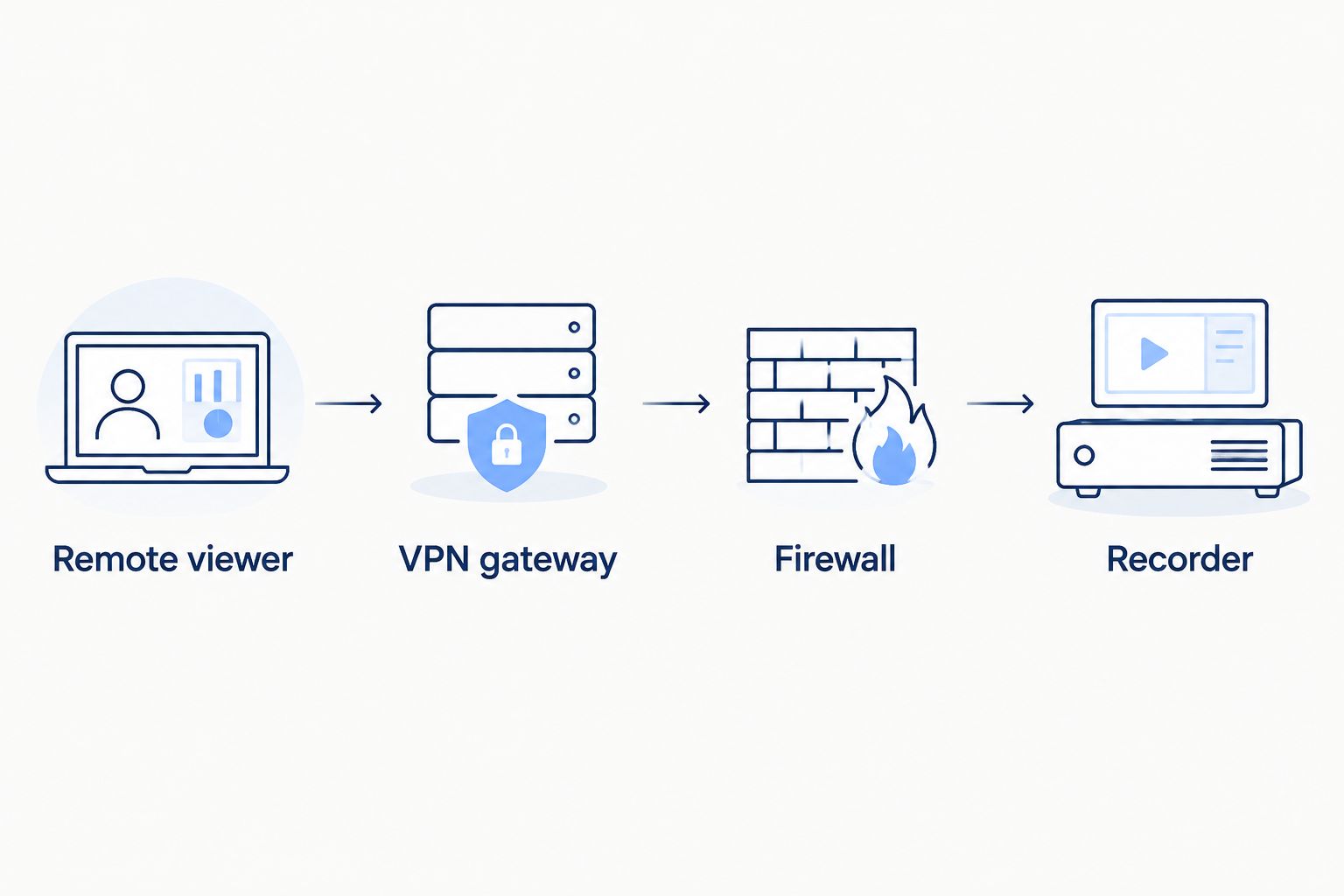
The connection path should remain simple: the remote viewer reaches the VPN gateway, the firewall permits the approved route, and the viewer opens the recorder. The cameras do not need individual public addresses for this workflow.
VPN access and off-site verification
- Configure a supported VPN endpoint. Use your firewall’s documented VPN service or a separately administered gateway. Follow its certificate, key, authentication, and update requirements. Enable multifactor authentication where supported.
- Create individual access. Give each authorized staff member a separate VPN identity. Keep VPN authentication separate from recorder permissions so removing remote access does not require changing a shared camera password.
- Limit the allowed route. Permit the VPN user group to reach the recorder’s private address and only its documented viewing services. Do not grant access to the entire business network simply because the tunnel connects.
- Check for overlapping subnets. Your remote location and camera site must have a workable routing arrangement. Identical private subnets at both locations can send recorder traffic to the wrong local network.
- Connect from outside. Turn off WiFi on a phone and use cellular data, or use another trusted off-site connection. Start the VPN, then enter the recorder’s private address in its supported viewing app.
- Verify access and denial. Test live video, recorded playback, and account permissions. Disconnect the VPN and confirm the private recorder is no longer reachable through that route. Also verify that no separate public camera-access rule remains enabled.
Expected result: An authorized off-site user can view the recorder through the VPN, while an unauthorized device cannot use the same private route.
Use 2 test devices: one authorized device and one without VPN credentials. Confirming that access fails where it should is part of the setup, not an optional security check.
Keep a dated 2026 acceptance record covering local recording, remote playback, denied access, and the person responsible for maintenance. Record results, not passwords.
Variant: approved manufacturer cloud viewing
A supported manufacturer app can provide remote viewing without directing inbound connections to your static IP. This is useful when your recorder supports that workflow and your business accepts the manufacturer’s account and service requirements.
- Verify exact compatibility. Check the recorder model, firmware, and manufacturer documentation. Do not assume cameras from the same manufacturer use the same app or account system.
- Secure the account. Use a unique password, enable multifactor authentication where offered, and assign individual users when supported. Keep recovery details under business control.
- Pair the recorder. Follow the manufacturer’s documented enrollment procedure. Remove unnecessary inbound forwarding rules; outbound cloud viewing does not itself justify exposing the recorder’s login page.
- Test off-site behavior. Check live video, playback, permissions, and notifications separately. Successful live viewing does not prove every feature works.
Expected result: Approved users view the recorder through the supported app without a public camera login.
The trade-off is dependency on that manufacturer’s remote service. Document whether local recording continues when internet access fails; verify the behavior on your equipment rather than assuming it.
Troubleshooting
The VPN cannot connect from outside
Check that the endpoint uses the assigned public IP, the VPN service is running, and the edge firewall permits its documented traffic. If another router or carrier-grade NAT sits upstream, resolve the handoff first. Do not open camera ports to fix a VPN connection problem.
The VPN connects, but the recorder stays offline
Check the recorder’s current private address, the VPN route, firewall policy, and subnet overlap. Also confirm that the recorder has a valid return route to the VPN client network. A connected tunnel proves authentication worked, not that recorder traffic is allowed.
Live video works, but playback fails
Test playback locally with the same recorder account. Check recording schedules, storage health, time settings, and playback permissions before changing internet settings. If playback works locally, review the manufacturer’s documented network requirements for remote playback.
Video stalls when several people watch
Compare on-site viewing with off-site viewing. Check business upload use, recorder stream settings, and VPN gateway load; lower the remote viewing stream’s bitrate where supported without changing the recording profile unnecessarily. A static IP does not add upload capacity.
Access breaks after a restart
Check whether the recorder’s local address changed or the firewall configuration failed to persist. Restore the reservation or documented manual assignment, then verify saved VPN and firewall settings. Recheck from outside rather than relying only on an on-site test.
Customize your workflow
Extend access by role, not by sharing one administrator account. A store manager needs a different permission set from an installer maintaining the recorder. Set an expiry or removal process for temporary access.
For broader staff access, use the business internet remote-access workflow to plan which internal resources each role actually needs. Keep camera viewing separate from unrelated business systems.
When coordinating a SumoFiber business internet connection, separate the provider handoff questions from camera installer tasks. Confirm who provisions the public address, who administers the edge firewall, and who maintains the recorder; do not assume one service includes every task.
For the rest of 2026, include remote access in staff offboarding and equipment-change procedures. Revoke departed users, review unused rules, and repeat off-site tests after replacing a router or recorder.
FAQ
Do I need a static IP to view security cameras remotely?
No. Supported manufacturer cloud access and some VPN arrangements work without a static public IP. A static IP gives an inbound VPN endpoint a stable destination, but it is not required for local recording.
Should I assign the public static IP directly to each camera?
No; keep cameras on private addresses behind the firewall for this workflow. Assign the public address according to the provider’s handoff instructions and use controlled remote access to the recorder.
Is a VPN better than port forwarding for business cameras?
A VPN is the recommended approach here because it keeps camera services off the public internet. You still need maintained equipment, individual credentials, and firewall rules that restrict access to the recorder.
Why can I view cameras at work but not on my phone away from work?
Local viewing confirms the recorder is reachable inside the building, not from outside it. Check the VPN connection, public IP handoff, routes, and user permissions before changing camera settings.
Does a static IP make remote camera video faster?
No. A static IP keeps the public address consistent; remote video performance depends on upload capacity, stream settings, network conditions, and equipment performance.
Can SumoFiber configure my security camera system?
Confirm camera configuration responsibilities directly with SumoFiber and your installer. SumoFiber offers business internet and managed WiFi, but those service categories do not establish support for a particular recorder, VPN, or camera installation.
Will cameras keep recording if the internet goes down?
Local recording can continue when the cameras, recorder, local network, and power remain working. Cloud recording and remote viewing depend on their connection requirements; test your installation’s behavior before relying on it.
One last thing
Test the system as a former employee, not just as the owner. Disable a test user, end existing sessions where supported, and confirm that remote viewing stops. A setup that lets the right person in but cannot reliably keep a removed user out is unfinished.