Instead of manually checking a phone portal for voicemail, connect hosted PBX to Google Workspace through a provider-supported email delivery workflow, then organize those messages in Gmail. Start by confirming what your Sumofiber phone account supports; email delivery, contact imports, and a native Google integration are different connections.
- To connect hosted PBX to Google Workspace, confirm the supported connection before changing phone settings.
- For Sumofiber phone service, ask which voicemail delivery and Google Workspace connections your account supports.
- Gmail filters organize delivered voicemail messages; they do not connect Google Workspace to your phone system.
- Test one mailbox before expanding, and keep the existing voicemail retrieval method working.
Why this matters
A voicemail reaching Gmail is not the same as connecting your whole phone system to Google Workspace. It does not, by itself, synchronize contacts, route calls through Google, or change how your desk phones ring.
Sumofiber is best suited to households and businesses seeking internet and phone services from one provider. For a business phone workflow, the useful question is narrower: which connection handles the task your staff actually needs?
Use this 2026 guide to set up a supported voicemail-to-Gmail workflow without assuming a native connector exists. If you are also replacing the phone system, review how long hosted PBX setup takes for a small business before scheduling the email changes.
| Connection | Best for | Benefit | Limitation |
|---|---|---|---|
| Voicemail email delivery, if supported | Receiving voicemail notifications in Gmail | Keeps phone messages near everyday email | Does not synchronize contacts or call controls |
| A documented Google Workspace connector, if supported | The specific functions its documentation lists | Connects supported functions directly | Requires compatibility and permission checks |
| Manual contact import | Moving an approved contact list into Google Contacts | Avoids ongoing application access | Imported contacts do not stay synchronized automatically |
Choose the smallest connection that solves the problem. An office that only needs voicemail in Gmail does not need to authorize an application to read its directory.
Before you start
- Gather access and ownership. Have an authorized phone administrator, the intended Google Workspace mailbox owner, and a Workspace administrator available if organizational settings need changing. Record the phone number, extension, and destination email address.
- Confirm the supported delivery method. Ask Sumofiber whether your account supports voicemail email delivery, whether it sends notifications or audio attachments, and whether messages remain accessible through the existing retrieval method. Request the current account-specific instructions.
- Check the non-obvious gotcha: the destination type. A Google Group address is not the same as a user mailbox. Group posting restrictions, membership, and attachment handling need separate checks; start with an authorized user mailbox for the pilot.
Do not enter a Google password into a phone portal to make email arrive. Receiving mail in Gmail does not require giving the sender access to the mailbox. If a documented connector requests account authorization, have the Workspace administrator review its identity and requested permissions separately.
Configuration unit: connection scope
Define the job before changing settings
- Write one outcome: receive voicemail notifications, receive voicemail audio, import contacts, or use a documented connector. Keep unrelated requests outside the first setup.
- Ask the phone administrator to confirm the supported method and provide its current instructions. For the email workflow below, confirm that voicemail email delivery is supported before continuing.
- Record what stays unchanged: existing call routing, greetings, extensions, and the current way staff retrieve messages.
- Select 1 pilot mailbox and its corresponding extension. Ask the mailbox owner to participate in testing rather than changing the whole office at once.
- Save the existing phone settings in an approved administrative record. Include the current destination address, if one is configured.
Expected result: You have a supported connection method, an authorized destination, and a clear way to restore the previous configuration.
For a 2026 rollout, record who owns each side of the connection. The phone administrator owns voicemail delivery settings; the Google Workspace administrator owns organizational email controls. Keeping those responsibilities separate prevents a missed message from becoming an unexplained phone-system change.
Configuration unit: voicemail delivery
Configure the phone-side destination
- Open the phone administration interface using the access method supplied for your account. Follow the provider's instructions for the pilot extension's voicemail delivery settings; do not substitute instructions for another PBX platform.
- Enter the approved Google Workspace email address in the documented destination field. Copy the complete address, including its domain, and check it against the mailbox owner's address.
- If the documented settings distinguish notifications from audio attachments, select the format your business has approved. A notification tells staff that a message exists; an attachment places a copy of its audio in email.
- Confirm the documented behavior for message retention and deletion. Do not assume deleting an email also deletes the original voicemail, or that sending an email preserves the original indefinitely.
- Apply the change using the control identified in your account's instructions. Leave call forwarding and ring-group settings unchanged.
Expected result: The pilot extension is configured to send the supported voicemail email format to the intended mailbox without changing incoming-call routing.
Keep the original voicemail retrieval method working during the pilot. Email delivery adds another place to check; it should not become the only retrieval path before you have tested it.
Use the provider's exact field names rather than looking for a generic Google Workspace button. Different phone platforms organize voicemail settings differently. A missing button is not a reason to grant broader permissions or change unrelated telephone settings.
Configuration unit: Gmail organization
Build a filter from a real message
- Leave a voicemail for the pilot extension from another phone. Use a neutral test message without customer details, account numbers, or other sensitive information.
- Open the destination Gmail mailbox and locate the resulting email. Check the inbox and spam folder before changing delivery settings again.
- Open the message and inspect its sender and subject. Confirm that it belongs to the pilot extension and that any expected audio attachment opens.
- In Gmail's search box, select Show search options. Enter the verified sender in From and add a stable subject phrase only if needed to distinguish voicemail from other messages.
- Select Create filter. Choose Apply the label, select New label, and name the label Office voicemail. Finish with Create filter.
- Keep Skip the Inbox (Archive it) unselected during the pilot. Staff should still see incoming messages while you verify the filter.
Expected result: New messages matching the tested criteria receive the Office voicemail label and remain visible in the inbox.
The filter is an organizational rule, not a phone integration. It cannot repair a wrong destination address, produce a missing audio attachment, or synchronize message status with the phone portal.
For your 2026 setup record, save the matching criteria and the label name. Do not rely on a screenshot alone: another administrator should understand why the rule matches voicemail rather than every message from the provider.
Configuration unit: acceptance testing
Verify delivery, access, and recovery
- Make 2 test calls to the pilot extension and leave distinguishable messages. Identify them as the first and second test without including private information.
- Check 3 results for each message: delivery to the correct mailbox, the expected notification or attachment, and correct Gmail labeling.
- Retrieve a test voicemail through the original phone-system method. Confirm that staff still have the fallback retrieval path you agreed to preserve.
- Ask the mailbox owner to find and handle a test message without administrator help. A technically successful delivery is not enough if the person answering customers cannot find it.
- Record the test date, extension, destination, and outcome. If a test fails, restore the previous destination or delivery setting using the saved configuration and investigate before expanding.
Expected result: Both test messages reach the intended mailbox, the recipient can handle them, and the original retrieval method still works.
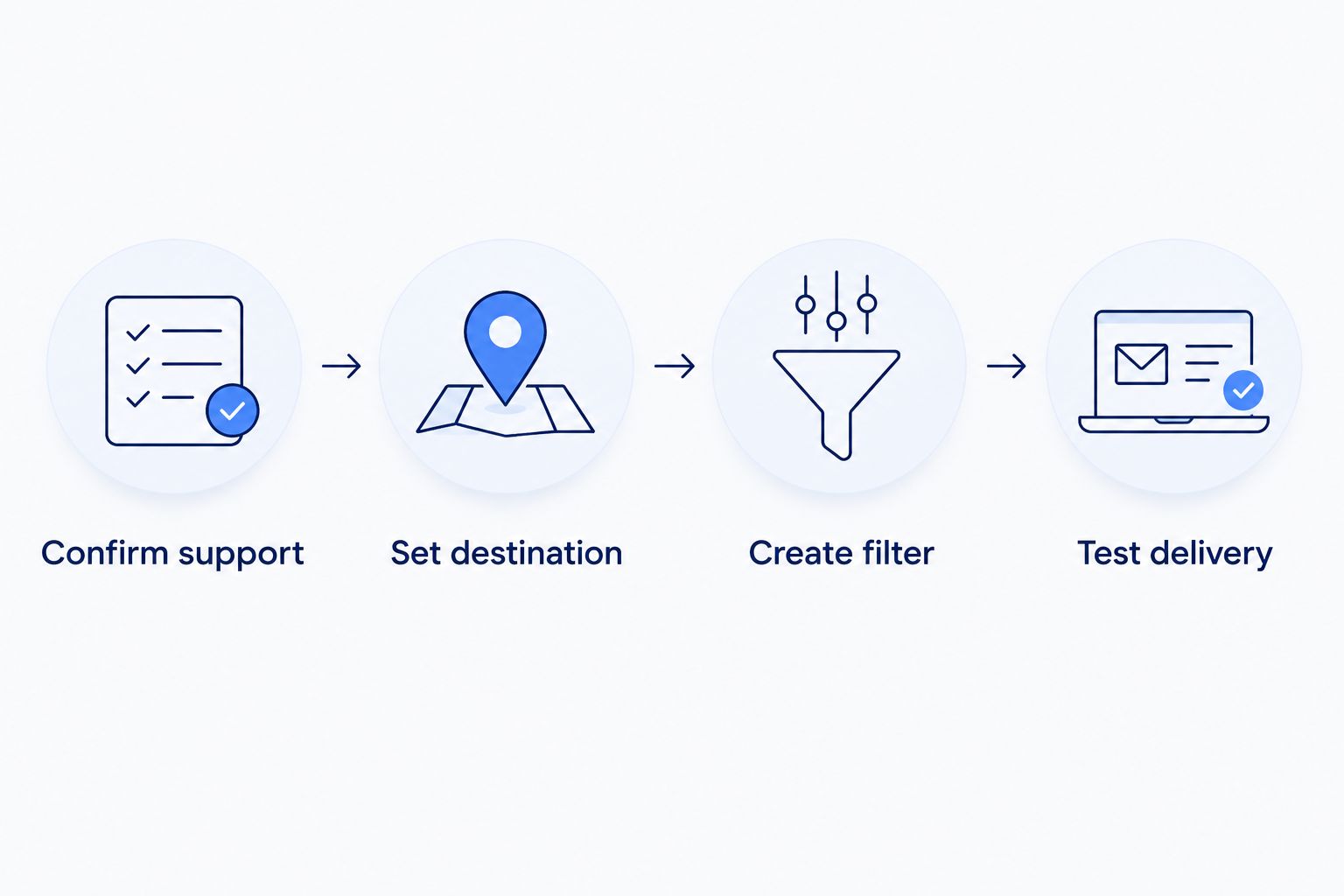
The sequence is simple: Confirm support, Set destination, Create filter, then Test delivery. Keep that order; a filter created before a real message arrives is harder to validate.
Second workflow: import approved contacts into Google Contacts
A contact import is an adjacent workflow, not an upgrade to voicemail email delivery. Use it when staff need an approved contact list in Google Contacts and you have permission to move that information.
Best for: A controlled, one-time transfer. The advantage is avoiding ongoing application access; the drawback is that later changes require another deliberate update.
- Confirm that the source system supports exporting the contacts you are authorized to transfer. Do not include private contacts or an entire company directory by default.
- Export a small test file in a format Google Contacts accepts. Check names, email addresses, and phone-number columns before importing; follow Google's current import guidance for formatting.
- Open Google Contacts in the intended work account. Select Import, then Select file, choose the prepared file, and select Import.
- Inspect the imported records. Check whether phone numbers landed in phone fields and whether existing contacts now have duplicates.
- Approve the result before importing the remaining permitted records. Keep the original export protected and remove unnecessary working copies according to your organization's rules.
Expected result: The approved records appear in the intended user's Google Contacts account. They are not automatically a shared company directory, and future PBX edits do not automatically update the import.
For a 2026 contact refresh, define which system is the authoritative source before repeating an import. Otherwise, staff can spend more time correcting duplicate records than they saved moving the list.
Troubleshooting
Voicemail does not arrive in Gmail
First confirm that a voicemail exists in the phone system. Then verify the destination address and check spam. If the phone system created the message but email is missing, ask the Workspace administrator to inspect Email Log Search for delivery evidence and request the phone provider's sending or rejection details.
The message arrives without audio
Check whether the configured delivery method sends only a notification. If your documented configuration supports attachments, compare the selected setting with the received message. Do not assume Gmail removed an attachment simply because the notification contains none.
Gmail applies the label to unrelated messages
The sender-only filter is too broad for your mailbox. Edit the rule to include a stable voicemail-specific subject phrase verified from actual messages. Test again before applying the rule to older mail.
A group address receives nothing
Review the group's posting permissions and message handling with the Workspace administrator. Test delivery to an authorized user mailbox to separate group restrictions from phone-side delivery problems. Do not make a group public merely to get a voicemail notification through.
A connector asks for unexpected access
Stop authorization and compare the requested permissions with the connector's documented purpose. A contact workflow and a mailbox-reading workflow have different access requirements. Have the administrator approve only a documented, necessary connection; do not experiment with organization-wide access.
Customize your workflow
Expand the tested pattern one mailbox at a time. Keep an owner for each destination, and decide who handles messages during absences before adding a shared address.
If the real goal is customer follow-up rather than email organization, review connecting a business phone system to HubSpot. Treat that as a separate project with its own supported connection and access review.
Keep your 2026 handover record short: the approved workflow, responsible administrators, destination addresses, filter criteria, and rollback instructions. Ask Sumofiber to confirm phone-side capabilities before expanding into contact synchronization or call controls.
FAQ
How do I connect hosted PBX to Google Workspace?
Start by confirming a supported connection with your phone provider. For voicemail email delivery, configure the approved Gmail destination, test a real message, and then create a Gmail filter to organize it.
Does Sumofiber hosted PBX have a native Google Workspace connector?
Confirm native connector support for your specific account with Sumofiber before authorizing an application. Voicemail email delivery alone does not establish that a native Google Workspace connector is supported.
Do I need Google Voice to receive PBX voicemail in Gmail?
No. A supported PBX voicemail email feature can send messages to a Gmail mailbox without using Google Voice as the phone service.
Will a Gmail filter synchronize my voicemail status?
No. A Gmail filter organizes email messages; it does not synchronize read, heard, or deleted status with the phone system.
Can voicemail notifications go to a Google Group?
Use a Google Group only after confirming its posting permissions and message handling. Test an authorized user mailbox first so you can distinguish group restrictions from voicemail delivery problems.
Will importing contacts keep Google Contacts synchronized with my PBX?
No. A manual import copies records at that point in time; later changes require another update or a separately supported synchronization method.
Should I give the phone portal my Google Workspace password?
Do not provide a Google Workspace password merely to receive voicemail email. Any documented application connection should receive a separate administrator review of its authentication method and requested permissions.
One last thing
Deleting a voicemail email is not proof that the original recording is gone. Check retention in both systems before staff begin handling real customer messages. The useful connection is not just one that delivers—it is one whose owners understand where the information remains.