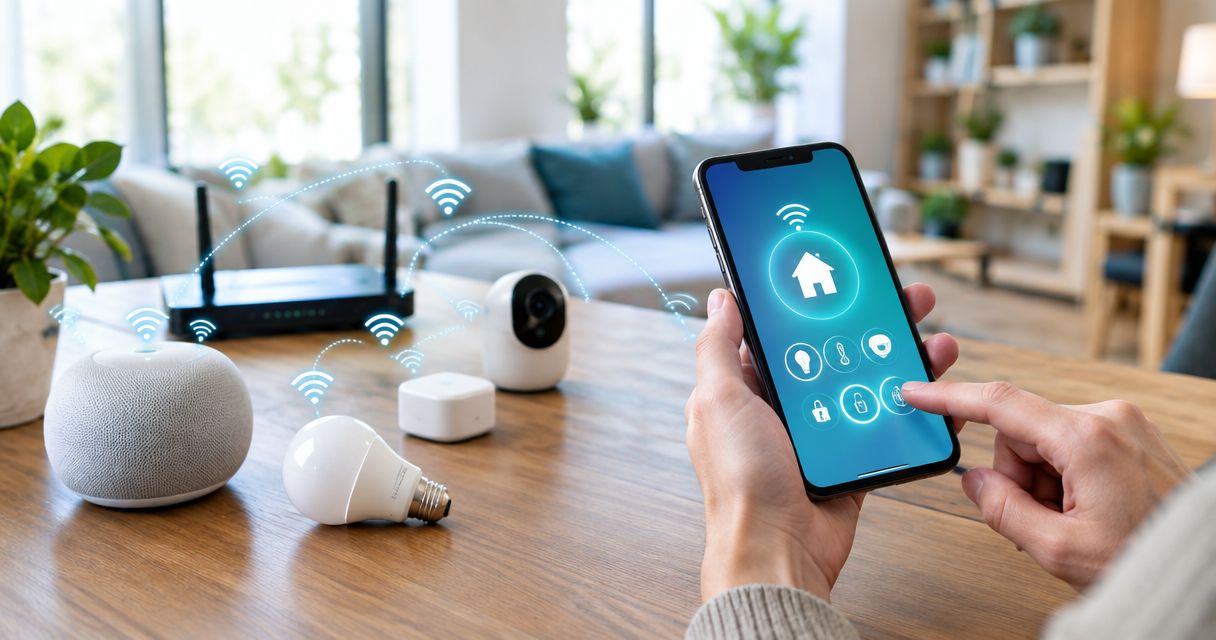
Instead of manually reconnecting a smart plug or camera after every restart, connect smart home devices to managed WiFi through their supported setup process, then let them reconnect using saved network credentials. New devices still need authorized pairing; managed WiFi does not automatically enroll every device you bring home.
- To connect smart home devices to managed WiFi, pair each device first; saved credentials support automatic reconnection.
- Sumofiber offers managed WiFi for households that want their internet provider to manage their wireless network.
- Check each device’s supported WiFi band and security requirements before pairing.
- Separate smart devices carefully: network isolation can prevent local discovery and control.
Why this matters
A camera that reaches the internet but cannot appear in its app is not fully set up. Neither is a smart speaker that works beside the router but drops offline in its usual room.
The useful automation starts after enrollment: a configured device can reconnect when power returns without making you enter its password again. A new, unconfigured device still needs a way to receive your network credentials securely.
Sumofiber managed WiFi is best for households that want their internet provider to manage their home wireless network. Sumofiber offers residential internet and managed WiFi, but your device’s setup instructions still determine how you enroll it.
For a 2026 setup, separate three jobs: prepare a compatible network, authorize the device, and test reconnection. Do not treat a successful pairing message as proof that everything works.
Before you start
- Have network access. Gather the WiFi network name and password, access to the network administrator or provider, and a phone that can join the intended network. In an apartment, confirm you control the household network rather than a shared building network.
- Have device access. Keep the manufacturer’s setup instructions, required app or account, and any pairing code nearby. A previously owned device can require removal from the former owner’s account before enrollment.
- Check the discovery gotcha. Guest or isolated networks can block communication between your phone and a smart device. Confirm the device’s supported WiFi bands and local-access requirements before choosing its network.
No single app menu applies to every managed WiFi installation. Follow the exact controls in your equipment’s instructions; the steps below describe the configuration decisions without inventing a universal button or provider setting.
Choose the connection workflow
Choose how the device joins before changing network settings. These are different workflows, not interchangeable shortcuts.
| Workflow | Best for | Advantage | Limitation |
|---|---|---|---|
| Manufacturer-guided pairing | A new WiFi smart device | Enrolls the device through its supported process | Requires initial authorization and sometimes an account |
| Saved-credential reconnection | An already configured device after a restart | Avoids repeating setup when network details stay compatible | Fails if credentials or required settings change |
| Reusing network credentials | Replacing a router in your own home | Gives compatible devices a chance to reconnect without individual pairing | Does not resolve changed security requirements or isolation rules |
| Separate smart-device network | Devices that support the intended network arrangement | Separates smart-device traffic from other household devices | Can prevent discovery or local control unless access is configured correctly |
Start with manufacturer-guided pairing for a new device. Reusing a network name is not permission to enroll an unknown device, and a separate network is not automatically the right home for every speaker, display, or hub.
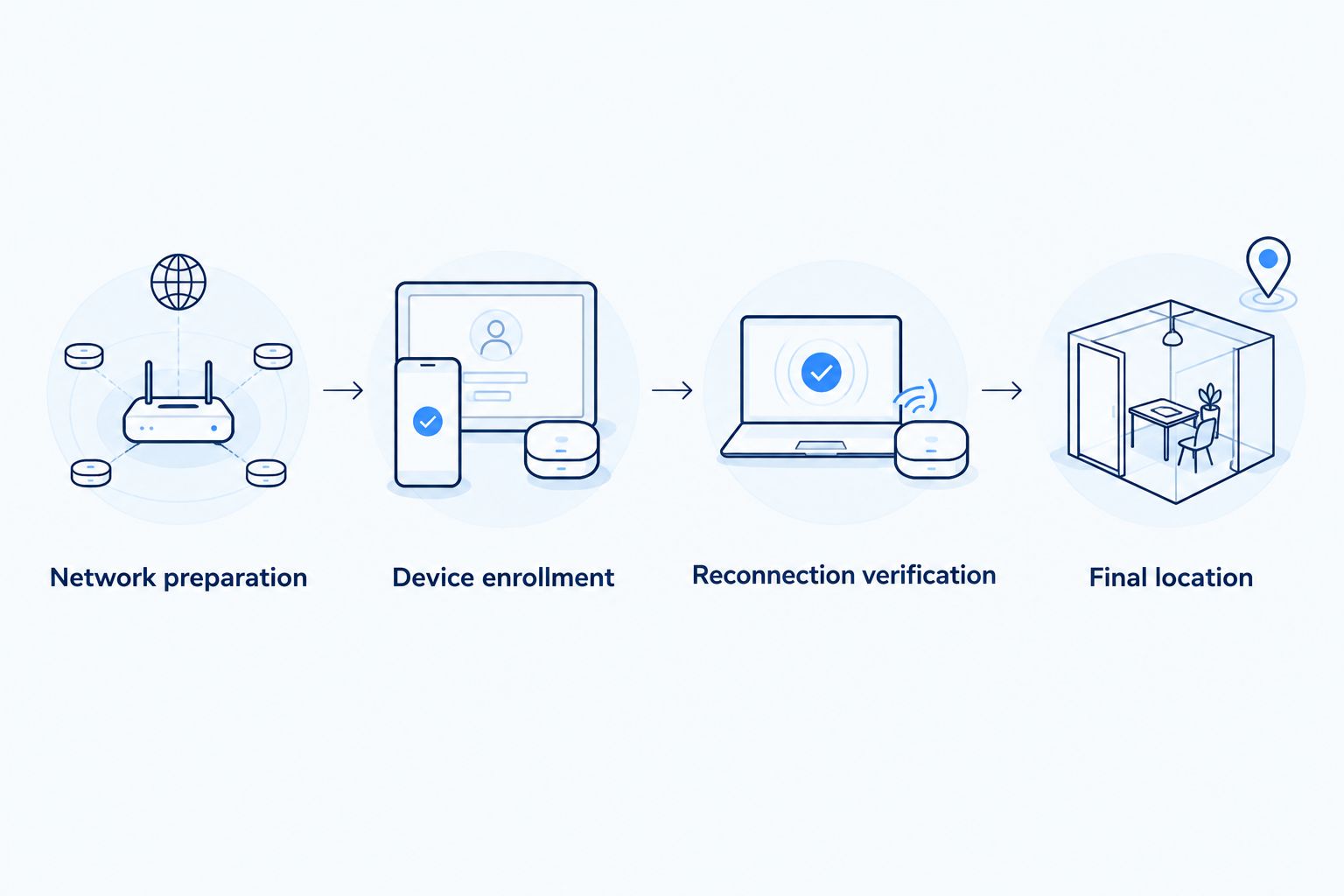
Network preparation
- Identify the intended network. Record its name exactly, including capitalization. If several similar names appear, confirm which belongs to your household before entering credentials.
- Check band compatibility. Some smart devices support only 2.4 GHz WiFi. A phone connected on 5 GHz does not automatically prevent setup when both bands share a local network, but follow any band-specific instructions from the device manufacturer.
- Check security compatibility. Confirm the device supports the network’s authentication method. Do not remove WiFi security to make pairing easier; ask the network administrator about a compatible, protected configuration instead.
- Check local communication. Determine whether your phone, device, and any required hub need to communicate locally. Ask about guest isolation or device isolation before putting them on separate networks.
Expected result: You know which network the device will use, its credentials, and whether its band and security requirements match. You also know whether your phone can reach it locally.
A 6 GHz network is not a substitute for 2.4 GHz support on a device that requires that band. Higher-band options on your router do not change the radio inside the smart device.
Keep this information with your 2026 household setup notes. Record configuration details, not account passwords in a shared document.
Device enrollment
- Prepare the device. Power it as directed and place it within reliable WiFi coverage for setup. Use the manufacturer’s stated pairing procedure; do not assume every flashing light means the same thing.
- Prepare your phone. Join the intended household network. Allow Bluetooth or local-network access when the manufacturer’s setup process requires it, rather than enabling unrelated permissions without explanation.
- Begin supported pairing. Follow the device’s app, setup code, or documented enrollment method. Enter the intended WiFi credentials when requested, and check for typing errors before submitting them.
- Complete ownership setup. Finish account association and any required hub connection. Give the device a recognizable room-based name so you can distinguish it from other household equipment.
- Test a real action. Switch the plug, request the camera’s live view, or use the device’s ordinary control. A device appearing in a list is not enough.
Expected result: The device joins the intended network and performs its normal function from your phone or controller.
For a device that connects through a separate hub rather than directly through WiFi, follow the hub’s instructions. The sensor or accessory does not necessarily appear as an individual WiFi client.
Do not factory-reset other working devices while adding a new one. Keep the change limited so a pairing problem does not become a whole-house repair job.
Reconnection verification
- Check the connection record. Where your network management interface provides a device list, match the new entry to the device’s identifying information. Do not identify it by an unfamiliar display name alone.
- Move to the final location. Test the device where you will actually use it. A successful setup near the router does not establish coverage at a detached garage or exterior doorway.
- Test a normal restart. Use the manufacturer’s restart procedure, then check whether the device returns online without another enrollment. Avoid cutting power during a firmware update.
- Repeat the real action. Confirm control after reconnection. For a camera, check its current live view rather than a saved thumbnail.
Expected result: The device reconnects with saved credentials and works from its installed location. If it requires pairing again, investigate whether credentials were saved or a reset occurred.
The 2026 acceptance test is simple: enrollment, placement, and reconnection must all succeed. Do not deliberately restart the whole household network during someone’s video call just to test a smart plug.
The sequence below keeps troubleshooting tied to the stage that failed rather than changing every setting at once.
Network access boundaries
- Identify control requirements. Establish whether the device uses local discovery, a cloud account, a hub, or a combination. Internet access alone does not prove that local control works.
- Choose the separation level. Use a separate smart-device network only when your equipment supports the access your devices need. Ask the administrator to preserve necessary communication without opening access broadly.
- Retest after separation. Check setup discovery, everyday control, and reconnection again. Test from the phone network you normally use, not only from the device’s own network.
Expected result: Your access rules match the device’s actual needs, and normal control still works after separation.
For more detail on the trade-off, read the guide to keeping guest WiFi separate from your business network. The same distinction matters at home: access to the internet and access to nearby devices are different permissions.
Reconnect devices after a router replacement
Best for: replacing your own router while keeping existing smart devices. Reusing the previous network name and password can let compatible devices reconnect without entering credentials again.
Before replacing equipment, record the network name, security mode, and any special network separation. Coordinate changes with the managed WiFi administrator rather than adding a second router without a plan.
On the replacement network, restore the intended credentials and a compatible security configuration. Retire the old access point as directed, then test devices in their normal rooms.
The advantage is less repeated setup. The limitation is that matching credentials does not reproduce every setting: isolation, security requirements, and coverage can still differ.
For a 2026 router replacement, verify a representative device before assuming the whole household has recovered. If you are changing credentials because they were exposed, do not reuse the compromised password for convenience. Re-enroll devices with the new credentials instead.
Troubleshooting
The device cannot find the network
Check its supported band and whether the network is broadcasting its name. A 2.4 GHz-only device cannot join a 5 GHz-only network. Follow the manufacturer’s instructions for hidden networks rather than repeatedly entering the same password.
Pairing fails despite the correct password
Check the exact network name, the security mode, and the device’s pairing state. If the manufacturer requires temporary Bluetooth access or a particular setup sequence, follow that sequence. Do not weaken the whole network to bypass an unexplained error.
The device is online but absent from the app
Check that you are signed into the correct device account and have allowed required local-network access. Then investigate isolation between your phone and the device. Cloud connectivity and local discovery are separate tests.
The device works near the router but not where it belongs
Test coverage at the installed location before repeating enrollment. Walls, distance, and placement affect the wireless connection. Ask the managed WiFi administrator about coverage rather than assuming a faster internet connection will fix the radio link.
The device stops reconnecting after a network change
Compare the old and new credentials, security settings, and access rules. Update the saved network through the manufacturer’s supported process. Use a factory reset only when the instructions require it, because it can erase other settings too.
Customize your workflow
Keep a household device inventory with the room, device type, account owner, intended network, and required hub. This makes an unfamiliar client entry easier to investigate without disconnecting the wrong equipment.
Ask Sumofiber about the managed WiFi controls supported by your installation before planning network separation or notifications. Do not assume every router, app, or service configuration offers identical controls.
When reviewing the household in 2026, include devices that sleep between transmissions. A quiet sensor does not behave like a continuously connected camera, so use its manufacturer’s expected behavior when checking whether it is healthy.
FAQ
Can managed WiFi automatically connect a brand-new smart device?
A brand-new smart device needs an authorized setup method before it can join a protected WiFi network. After enrollment, it can reconnect using saved credentials when the network remains compatible.
How do I connect smart home devices to managed WiFi?
Prepare a compatible network, pair each device through its supported setup process, and test control and reconnection. Confirm the WiFi band, security mode, and local communication requirements before enrollment.
Does my phone have to use 2.4 GHz to set up a smart device?
Not always; follow the device manufacturer’s instructions. A phone on 5 GHz and a device on 2.4 GHz can communicate when both bands belong to the same local network and access rules allow it.
Should I put smart home devices on guest WiFi?
Use guest WiFi only when its access rules support the device’s setup and everyday functions. Guest isolation can block local discovery, casting, or control from a phone on another network.
Will smart devices reconnect if I replace my router?
Compatible devices can reconnect when the replacement network uses their saved credentials and compatible settings. Matching the network name and password alone does not reproduce security modes, isolation rules, or coverage.
Does Sumofiber managed WiFi replace the device manufacturer’s app?
Do not assume managed WiFi replaces the device manufacturer’s app or account. Use the device’s documented enrollment method and confirm the network management controls supported by your installation.
Why is my smart device online but not responding?
An online connection does not prove that local control or the device’s cloud service is working. Check the correct account, required app permissions, network isolation, and the device’s normal control function.
One last thing
Test reconnection before putting the ladder away. A camera that works during pairing still needs to reconnect and deliver a live view from its mounted position. That final check is more useful than another successful setup notification.