
Instead of reconnecting your checkout every time wireless fails, connect a compatible POS terminal by Ethernet and configure router-based internet failover for an upstream outage. Your POS system stays online when WiFi drops only if its connection bypasses the failed wireless link; cellular backup alone does not repair that link.
- A POS system stays online when WiFi drops through Ethernet, provided the router and internet connection remain working.
- Cellular failover protects against an internet outage, not a disconnected wireless terminal.
- SumoFiber offers business internet and managed WiFi; confirm backup compatibility separately.
- Test wireless loss, internet loss, and recovery separately before relying on automatic failover.
Why this matters
A customer is ready to pay, but the terminal stops responding. Restarting everything hides the cause and can interrupt the rest of the business.
Checkout depends on separate links: the terminal’s local connection, the router’s internet connection, and the payment service. Fix the link that actually failed.
SumoFiber is best for businesses seeking business internet and managed WiFi from one provider. Those services do not, by themselves, establish that your payment terminal supports Ethernet, cellular backup, or automatic recovery. Discuss those requirements with SumoFiber and your POS provider before changing checkout equipment.
For a 2026 checkout setup, distinguish three outcomes: staying connected, reconnecting automatically, and completing a payment. A network can recover while a payment session still needs attention.
Before you start
- Get access and approval. You need router administration access, permission to change the business network, and your POS provider’s connection requirements. Schedule changes outside checkout hours and save the current router configuration.
- Check the hardware. Confirm the terminal supports Ethernet or an approved wired dock. For internet failover, confirm that your router supports a separate backup connection and that the cellular equipment and service permit router use.
- Catch the hidden dependency. A backup connection on the router cannot help a terminal disconnected from WiFi. An internet path change can also interrupt an active payment; follow the POS provider’s transaction-recovery procedure before retrying.
Router screens differ by manufacturer and firmware. Use the equipment manual for exact menu names rather than assuming every device has the same buttons. The instructions below describe the settings to configure, not a universal interface.
Choose the protection that matches the failure
Best for a fixed checkout: Ethernet to a working router. It removes the wireless hop from that terminal’s connection. It does not protect against a failed router, power loss, or an upstream internet outage.
Use this comparison before buying or changing equipment. These are connection approaches, not interchangeable guarantees.
| Approach | Best for | What it addresses | Limitation |
|---|---|---|---|
| Ethernet connection | Fixed checkout counters | Loss of the terminal’s WiFi connection | Requires supported hardware and cable access; still depends on router and internet |
| Router-based cellular failover | Upstream internet outages | Loss of the primary internet path | Does not restore a terminal’s failed WiFi link; sessions can disconnect |
| Terminal-native cellular | Mobile checkout with supported hardware | Bypassing the local WiFi network | Depends on terminal support, cellular reception, and payment-provider requirements |
| Approved offline payment mode | Temporary loss of payment connectivity | Recording eligible transactions without immediate authorization | Is not an online connection; payment acceptance carries provider-specific restrictions and risk |
Do not treat offline mode as proof that the POS stayed online. A recorded sale and an authorized payment are different states.
Terminal connection
Connect the checkout without relying on WiFi
- Confirm Ethernet support. Check the terminal documentation for the approved port, adapter, or dock. Do not assume an ordinary USB adapter works with payment hardware.
- Connect the cable. Run Ethernet from an approved business-network port to the terminal or dock. Keep the cable clear of foot traffic and moving drawers.
- Select the supported connection. Follow the POS provider’s instructions for wired networking. If the device supports both wired and wireless connections, verify which connection is active rather than assuming Ethernet takes priority.
- Check local dependencies. Confirm that receipt printers, cash drawers, kitchen displays, and other required devices still communicate. Moving a terminal onto a different network can break local discovery.
- Verify payment access. Use the payment provider’s approved connectivity test or test procedure. Do not create live charges merely to prove a cable works.
Expected result: The terminal reports a working wired connection and reaches its required services without using WiFi.
Start with 1 checkout terminal as the pilot. Keep the remaining checkout stations unchanged until the pilot’s payment and peripheral checks pass.
Verify wireless independence
For your 2026 acceptance checklist, record the terminal model, connection method, and test result. Documentation makes the next equipment replacement less dependent on someone remembering how checkout was wired.
Disable WiFi on the pilot terminal only if the provider supports doing so while Ethernet is active. Confirm that the terminal remains connected and that its required peripherals still work. Avoid switching off the shared access point during trading hours.
Backup internet configuration
Configure the alternate internet path
- Connect the backup equipment. Attach the supported cellular modem or gateway to the router’s designated backup interface. Follow the router and cellular equipment documentation.
- Establish the backup connection. Verify that the cellular service connects before adding automatic failover rules. Test reception where the equipment will actually sit.
- Set connection priority. Configure the existing internet connection as primary and the cellular connection as backup. Choose failover rather than distributing sessions across both links unless your network administrator has designed otherwise.
- Configure internet health checks. Use the router’s supported method for checking reachability beyond the local gateway. A connected Ethernet port does not prove the internet path works.
- Set recovery behavior. Use the router’s documented failure and recovery settings. Avoid an immediate return to a primary connection that is repeatedly dropping.
Expected result: The router shows a healthy primary path and a working standby path. You have 2 internet paths, not proof that an active payment will survive switching between them.
Do not copy arbitrary timeout values from another router’s tutorial. Supported health checks, recovery controls, and suitable settings depend on the equipment and connection.
Keep checkout traffic on the protected network
Place payment devices on the intended business network, not guest WiFi. Confirm that the backup policy covers that network and that its firewall rules permit the payment provider’s documented traffic.
For this 2026 configuration, ask SumoFiber about the business internet and managed WiFi responsibilities, and ask your equipment supplier about failover behavior. Do not assume a mobile service automatically includes router-compatible backup use.
Outage testing and recovery
Prove each failure separately
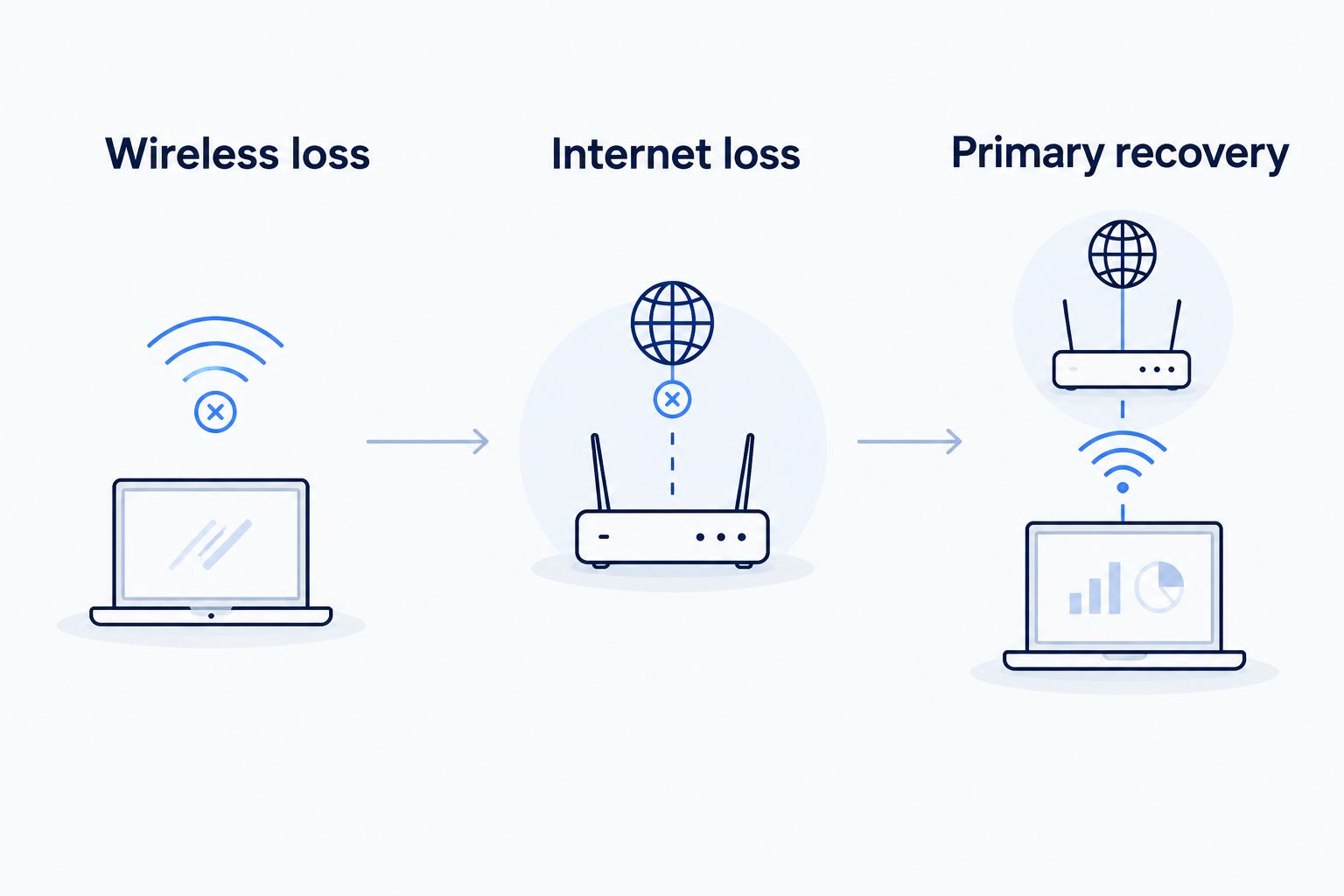
Use 3 outage tests: wireless loss, primary internet loss, and primary internet recovery. Keep a person at the pilot checkout and another at the router so each change has a clear start and stop.
- Wireless loss. With the pilot using Ethernet, disable only its wireless connection through the supported method. Check that wired connectivity and payment-service access remain working.
- Internet loss. Restore the normal terminal settings, then disconnect the router’s primary internet feed at the approved Ethernet handoff. Leave the router, terminal, switch, and backup equipment powered. Do not unplug or handle the optical fiber.
- Primary recovery. Reconnect the primary feed and watch the router return according to its configured recovery policy. Repeat the approved connectivity check after recovery.
Expected result: You can identify which connection carried the pilot during each test and whether the payment application recovered without staff intervention.
Record the result of each test, including any reconnect prompt or peripheral failure. This is your 2026 baseline; repeat the checks after changes to routing, terminal hardware, or payment software.
Check the payment outcome, not just the connection
An online indicator does not establish whether an interrupted charge succeeded. Before retrying, follow the POS provider’s process for checking transaction status or reconciling uncertain payments.
Automatic network recovery is not a guarantee of uninterrupted payment processing. Confirm the payment application’s behavior during both failover and return to the primary connection.
Variant: protect a wireless-only POS
A handheld terminal cannot always use Ethernet. For a wireless-only POS, keep the local WiFi working first; router-based cellular failover protects only the connection beyond the router.
- Check the terminal’s approved wireless requirements and test coverage at its actual working locations, including tables, patios, or stockrooms used for checkout.
- Confirm that the payment network remains separate from guest access while still allowing required printers and other approved devices to communicate.
- Ask the POS provider whether that terminal supports native cellular service and automatic switching. If supported, follow its documented setup and test procedure.
- Test local wireless loss separately from an upstream internet outage. Do not count a router failover test as a wireless-resilience test.
Expected result: You know whether the handheld has an independent connection or still depends entirely on the access point.
For the router-side workflow, use the guide to automatically switch to cellular backup when fiber drops. Keep that protection separate from the handheld’s local connection requirements.
Native cellular can bypass local wireless equipment, but it introduces dependence on cellular reception and terminal support. An ordinary phone hotspot is not a substitute for a documented, tested checkout workflow.
Troubleshooting
The router switches to backup, but checkout stays offline
Check the terminal’s local connection first. If the terminal lost WiFi, the router’s working cellular connection is out of reach. Restore the access point connection or use an approved independent terminal connection.
Ethernet works, but the receipt printer disappears
Check whether the terminal and network printer still have the required communication path. Guest isolation, network segmentation, or a changed subnet can block discovery. Restore the approved configuration without opening payment devices to guest traffic.
The router reports a healthy primary connection during an outage
Check what the health test measures. A physical link or reachable local gateway can remain present while upstream internet access fails. Configure the router’s documented external reachability checks and repeat the outage test.
Checkout disconnects again when primary internet returns
Check recovery settings and router logs for repeated switching. Use the documented recovery delay or stability controls, then verify payment status before retrying any interrupted transaction. A restored primary path can change active sessions again.
Backup works during testing but fails during a power outage
Check power to every dependency: terminal, router, modem, required switch, access point, and fiber handoff equipment. Battery backup must cover the devices the chosen connection needs; protecting only the terminal leaves the network unpowered.
Customize your workflow
Extend the test from the pilot to every checkout location. A counter terminal, handheld, and kitchen printer do not necessarily share the same connection or recovery behavior.
Keep a short staff procedure beside checkout: identify the failed link, check the router’s connection status, follow the approved payment-status check, and escalate with the time and error message. Avoid telling staff to reboot everything first.
Ask SumoFiber which parts of your business internet and managed WiFi setup are managed, and document who owns the router, backup connection, and POS configuration. Clear ownership prevents a payment problem from becoming a round of calls between suppliers.
FAQ
How do I make sure my POS system stays online when WiFi drops?
Use an approved Ethernet connection for a compatible fixed terminal so it does not depend on WiFi. The router, internet connection, payment service, and required peripherals must still work.
Will cellular backup fix my POS terminal’s lost WiFi connection?
Router-based cellular backup does not fix a terminal’s lost WiFi connection. It replaces the upstream internet path while the terminal still needs a working local connection to the router.
Can a POS switch to cellular automatically?
Automatic cellular switching requires support in the terminal or network equipment. Confirm the exact terminal and router capabilities, then test both the switch to backup and the return to the primary connection.
Does offline payment mode mean my POS is still online?
Offline payment mode does not mean your POS is online. It handles eligible transactions according to the payment provider’s rules, which can include delayed authorization and payment risk.
Will an active card payment survive internet failover?
Do not assume an active card payment will survive internet failover. A changed connection can interrupt the payment session; check transaction status through the provider’s approved process before retrying.
Does SumoFiber provide everything needed for POS failover?
SumoFiber offers business internet and managed WiFi, but POS failover compatibility requires separate confirmation. Ask about the specific router, backup equipment, cellular service, and responsibilities for configuration.
What should I test after changing my checkout network?
Test wireless loss, primary internet loss, and primary internet recovery separately. Verify payment-service access, transaction recovery, printers, and other required checkout devices after each change.
One last thing
Test the return trip. A checkout that reconnects successfully on cellular can disconnect again when the router returns to its primary internet connection. Your 2026 sign-off should include recovery in both directions, not just a successful switch to backup.