
Instead of manually disconnecting the kids’ devices every night, use a managed WiFi parental controls schedule to pause their home internet access at bedtime and restore it in the morning. Set the rule on their devices—not the whole household network—and confirm that your WiFi system supports recurring schedules before you begin.
- Sumofiber offers managed WiFi; confirm recurring parental controls schedules before planning an automatic bedtime pause.
- A managed wifi parental controls schedule limits home-network access, not offline games or cellular data.
- Group each child’s devices, set bedtime and morning boundaries, and test both transitions.
- Keep adults’ work devices and essential household equipment outside the bedtime group.
Why this matters
A bedtime rule should stop the bedroom tablet without interrupting a parent’s video call. Turning off the router does neither selectively. A device-level schedule gives you a narrower boundary: the selected devices lose internet access while the rest of the household stays connected.
Sumofiber managed WiFi fits households that want home internet and WiFi service from one provider. You can explore Sumofiber for those services. For bedtime automation, confirm the controls included with your particular WiFi setup rather than assuming every managed system has the same features.
For your 2026 household routine, separate two goals: stopping online activity and putting screens away. A network schedule addresses the first. Downloaded videos, offline games, and a phone’s cellular connection need a separate household rule or device-level restriction.
Before you start
- Get administrator access. Have the management app or dashboard for your installed WiFi system, the account authorized to change controls, and access to the devices you want to include. Confirm that recurring device or profile schedules are supported.
- Write down the boundaries. Decide which devices belong to each child, which nights count as school nights, and when access should return. Keep adult computers, shared equipment, and essential connected devices outside the bedtime group.
- Check the overnight behavior. A pause beginning in the evening and ending the next morning crosses midnight. Confirm how your system assigns days, and remember that cellular data or another reachable network can bypass a home-WiFi restriction.
App menus differ by router and management platform. Use your system’s instructions for the actual control names; the steps below describe the settings to find, not a promised menu layout. If you cannot find a recurring schedule, ask your provider whether your installed equipment supports it before building the rest of the workflow.
Device assignments
Identify devices
- Open the connected-device list in your WiFi management app or dashboard. Connect the child’s tablet, laptop, console, or phone to your home network so you can identify it.
- Match each entry to the physical device. Use the device’s network settings and the router’s identifying details rather than guessing from a generic manufacturer name.
- Give the entry a recognizable name if renaming is supported. Use a description such as bedroom tablet or homework laptop, without including information you do not need.
- Repeat for every device that should follow the bedtime rule. Include a console’s wired connection if your system applies controls to wired devices; verify that support separately.
Expected result: You can point to each selected network entry and identify the device it represents. Do not schedule an unknown entry just because it looks like a child’s tablet.
Create the bedtime group
- Open the area used to assign devices to people, profiles, or groups, if your system provides one.
- Create a separate group for each child whose bedtime differs. If all included devices follow the same hours, a shared bedtime group can be simpler.
- Add only the devices that should lose internet access. Review the list before saving.
- If profiles are unavailable but individual scheduling exists, apply the same rule separately to each relevant device.
Expected result: The bedtime group contains the intended devices and nothing else. The parent’s work laptop and the shared household equipment remain outside it.
A shared television deserves a deliberate decision. If adults use it after the children go to bed, leave it outside the children’s group and handle viewing limits separately. A network rule cannot tell who is holding the remote.
Bedtime schedule
Define the pause window
- Open the recurring schedule controls for the selected group or device.
- Determine whether the schedule describes blocked time or allowed time. These are opposite rules; entering bedtime hours into an allowed-time window creates the wrong result.
- Enter your chosen evening boundary and morning return time. As an example—not a recommended bedtime—a pause from 9:00 p.m. to 7:00 a.m. covers 10 hours overnight.
- Select the appropriate days. Check whether a Monday selection means Monday evening through Tuesday morning or a different interpretation in your system.
- Confirm the router or account time zone, save the schedule, and make sure the rule is enabled.
Expected result: The saved rule shows the intended devices, days, and overnight window. Read it back as a sentence: these devices lose home internet access at this time and regain it at that time.
For a 2026 school-night schedule, work from the evening when the restriction begins. Sunday evening often needs the school-night rule even though Sunday is a weekend day. Your family’s calendar—not a preset weekday label—determines the correct selection.
Check exceptions
- Look for existing schedules, manual pauses, or access restrictions affecting the same devices.
- Resolve conflicting rules before testing. Consult the system’s documentation when it is unclear which rule takes priority.
- Decide how you will handle an occasional late homework session. Use a documented temporary override if supported, rather than deleting the recurring schedule.
- Check how the override ends. Some systems distinguish a temporary exception from disabling the entire rule; verify the behavior in yours.
Expected result: You understand both the normal bedtime rule and the action needed for an exception. An extra homework session should not silently remove tomorrow night’s boundary.
The workflow has four parts: identify devices, create the bedtime group, define the pause window, and test the schedule. Keep that order. Scheduling first and sorting out device ownership later makes accidental interruptions harder to diagnose.
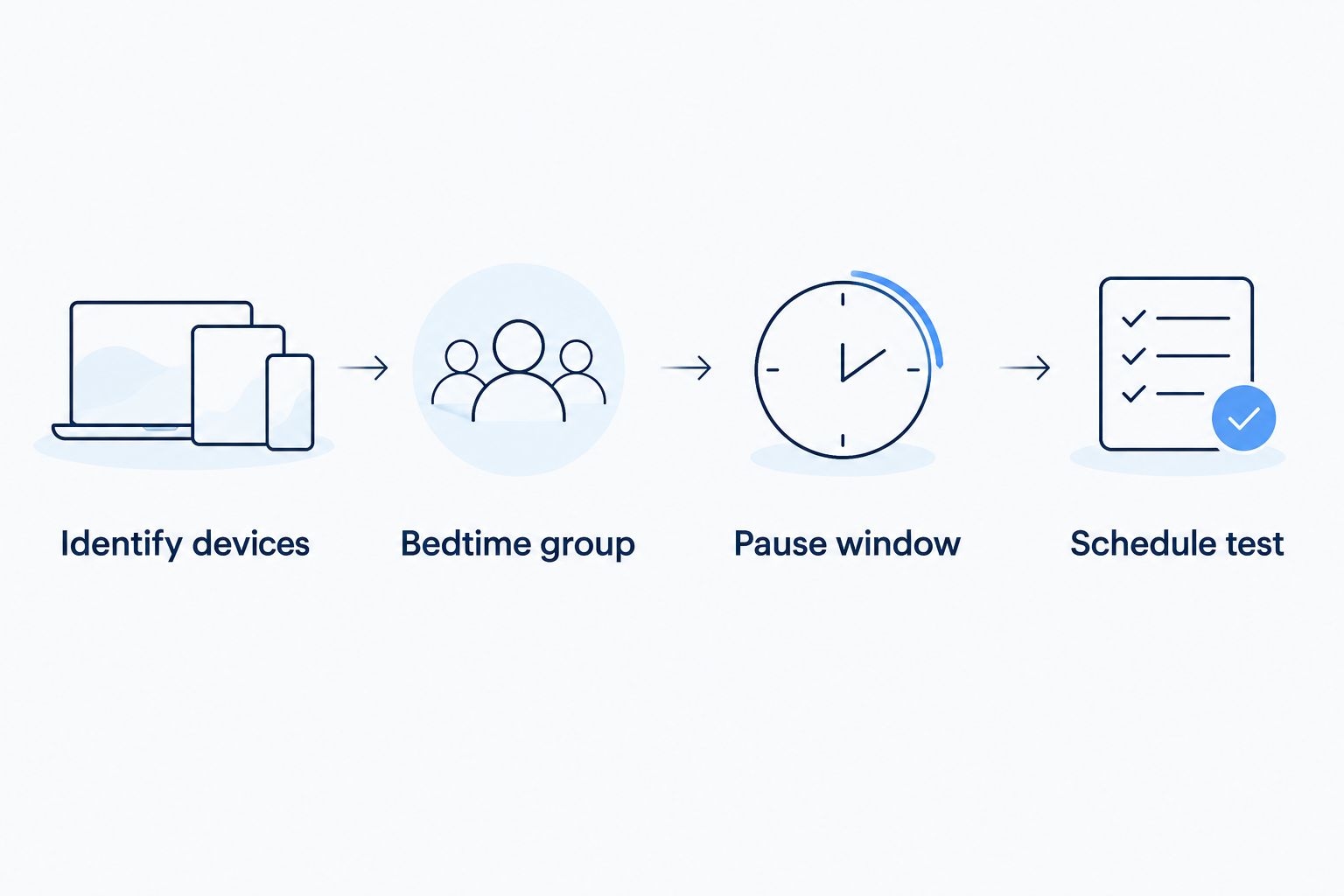
Schedule test
Test the evening boundary
- Choose a short test window while you can watch the devices. Tell everyone affected that you are testing a network rule.
- On a selected device, open a fresh webpage before the pause starts. Confirm that the device has internet access through your home WiFi.
- After the boundary passes, request another fresh page or start new online activity. Do not use a downloaded video as the test.
- On an excluded adult device, check that internet access still works. This confirms that you have not restricted the whole network.
Expected result: New internet activity fails on the selected device while the excluded device stays online. The selected device can still show a WiFi connection even when its internet access is restricted.
Test the morning boundary
- Let the test window end without manually lifting the restriction.
- Request fresh online content on the selected device again.
- Check every included device, not just the tablet you used first.
- Restore your intended bedtime hours after the test and review the saved schedule once more.
Expected result: Internet access returns automatically, and the final schedule contains your household’s actual hours rather than the test window.
A successful bedtime test includes the morning restart. A rule that blocks correctly but leaves the homework laptop disconnected the next day is unfinished. Add both checks to your 2026 setup checklist.
If your system shows activity records or device status, use them as supporting evidence. The decisive check is still what a selected device and an excluded device can actually do at each boundary.
Add a separate weekend routine
A second recurring schedule makes sense when your system supports different rules by day and your household uses different weekend hours. Keep the device assignments; change only the relevant schedule boundaries.
For example, a household might choose a 10:00 p.m. weekend start instead of its 9:00 p.m. school-night start. Those are sample settings, not sleep guidance. Choose times that match your family’s routine and confirm the same overnight day behavior used in the first schedule.
| Control | Best for | Advantage | Limitation |
|---|---|---|---|
| Recurring school-night schedule | Predictable evening boundaries | Repeats without a nightly manual action | Needs correct day and device assignments |
| Separate weekend schedule | Different Friday and Saturday routines | Changes hours without changing device groups | Overlapping rules need review |
| Manual device pause | An immediate, one-time interruption | Lets you act outside the normal window | Does not replace recurring automation |
| Device-level screen limits | Offline apps and broader screen rules | Addresses activity beyond home WiFi | Requires setup on the device itself |
Use recurring schedules for routine boundaries and manual pauses for exceptions. Device-level limits complement the network rule when the goal includes offline activity or cellular use.
During 2026 school breaks, review the schedule before changing it. Record the original settings so you can restore them when the normal routine returns. Avoid leaving a holiday exception active indefinitely.
Troubleshooting
The tablet still plays videos after bedtime
Check whether the video is downloaded or already buffered. Playing existing content does not prove that new internet access is working. Request fresh content, and check whether a phone has switched to cellular data.
If fresh content still loads through home WiFi, verify the device assignment and enabled schedule. A second network or an unrecognized device entry needs attention before the rule can cover that connection.
The pause affects an adult’s work computer
Review the group membership and remove the adult device from the bedtime rule. Also check whether you used a network-wide restriction instead of a device-level control.
Retest with one selected device and one excluded device. Do not solve the problem by repeatedly disabling the whole schedule; correct its scope.
The rule starts on the wrong night or hour
Check the selected days, overnight interpretation, and time zone. Then confirm whether the setting defines blocked hours or permitted hours.
When clocks change during 2026, review the next scheduled transition. Follow your system’s documentation for local-time handling rather than assuming the displayed rule proves the boundary is correct.
A device appears as a new or duplicate entry
Some devices use private or randomized network addresses, which can affect how a router identifies them. Match the current entry to the physical device before changing assignments.
Use the router and device documentation to determine how persistent identification works on your network. Do not disable privacy settings across the household just to make a list look tidier.
Access does not return in the morning
Look for a manual pause, another active schedule, or a device-level restriction. Check whether the overnight end time was saved correctly.
Use the documented resume control where needed, then test the automatic return again. Keep the diagnosis focused: a device can have a WiFi signal while still being subject to an access rule.
Customize your workflow
Once the bedtime rule works, apply the same device-assignment discipline to other recurring boundaries. A homework period, a shared console, or different sibling routines can each need a distinct rule. Add one change at a time and verify its effect before adding another.
If you also want to understand unexpected disconnections, read the guide to device-drop alerts on managed WiFi. A scheduled restriction and a device leaving the network are different events; troubleshooting starts with identifying which happened.
Sumofiber offers managed WiFi alongside home internet, but the bedtime controls you use depend on the installed system. Ask specifically about recurring schedules, individual device assignments, overnight windows, and temporary exceptions. Those questions establish whether the workflow fits your household without relying on a feature name alone.
FAQ
How do I set a managed WiFi parental controls schedule for bedtime?
Assign the intended devices to a profile or individual rule, set a recurring overnight restriction, and test both the pause and the automatic return. Confirm that your installed WiFi system supports recurring schedules before starting.
Does Sumofiber managed WiFi include automatic bedtime schedules?
Confirm recurring bedtime-schedule support for your installed Sumofiber managed WiFi system before relying on it. Ask which device controls, overnight scheduling options, and temporary exceptions are included.
Will pausing my child’s WiFi stop cellular data?
No. A restriction on your home WiFi does not control the phone’s separate cellular connection. Use appropriate device-level controls or a household phone rule when cellular access also needs a boundary.
Can I pause the kids’ devices without interrupting my work laptop?
Yes, when your WiFi system supports device-level or profile-level restrictions. Keep your work laptop outside the bedtime group and verify that it remains online during the test.
Why can my child still watch a video after the WiFi pause starts?
Downloaded or already-buffered video can continue without fresh internet access. Test a new webpage or new online content, then check the device assignment and whether another connection is active.
Can I use different WiFi bedtime hours on weekends?
Yes, if your system supports separate recurring schedules by day. Check overnight day assignments and avoid conflicting rules on the same devices.
Is a WiFi bedtime schedule the same as a screen-time limit?
No. A WiFi bedtime schedule restricts access through the controlled home network, while device-level screen-time controls can restrict apps or device use. Use both when your goal includes offline activity.
What should I do when my child needs internet for late homework?
Use a documented temporary exception if your WiFi system supports one. Check when it ends, and keep the recurring bedtime rule intact so the next scheduled pause still happens.
One last thing
The WiFi symbol is not proof that a bedtime rule failed. A device can remain connected to the router while its internet access is restricted. Test new online activity, not the icon, and keep a separate plan for offline entertainment.
Tell your children what will pause and when access returns. A predictable boundary is easier to follow than an unexplained disconnection—and easier for you to maintain.