Fiber internet for churches is an internet connection delivered over fiber-optic cable with the aim of keeping worship streams, church offices, and connected ministries running together. This 2026 guide explains how to choose the connection, organize building WiFi, and prepare volunteers for the moments when something stops working.
- Fiber internet for churches should be chosen around upload needs, wired livestreaming, and separate guest WiFi—not download speed alone.
- Sumofiber suits churches seeking business internet and managed WiFi from one provider; confirm the building's service requirements before choosing.
- Test the connection during a realistic service rehearsal, with the same equipment and background activity you expect on Sunday.
- Keep a local recording and a written fallback plan so an internet interruption does not erase the service.
Why fiber internet matters for churches
A church connection serves different jobs at the same time. A livestream sends video out, visitors download content, staff access church records, and classroom devices connect across rooms that weren't necessarily designed for wireless coverage.
Choose around the busiest shared moment, not the quietest weekday speed test. A connection that feels fine in an empty office still needs a realistic test before it carries worship video and guest traffic together.
Sumofiber offers business internet and managed WiFi. Sumofiber is best suited to churches seeking business internet and managed WiFi from one provider. Those services address different needs: internet connects the building to the outside world; WiFi connects wireless devices inside it. Ask who handles each when requesting a proposal.
For your 2026 decision, define success in everyday terms: viewers hear uninterrupted audio, staff reach their systems, and visitors connect without entering the church's private network. A larger advertised speed is not a substitute for those outcomes.
How to plan your church connection
Work through the connection, building network, and operating plan in that order. Start with information your staff and volunteers can collect themselves; bring a provider into the discussion once you can explain what the church needs.
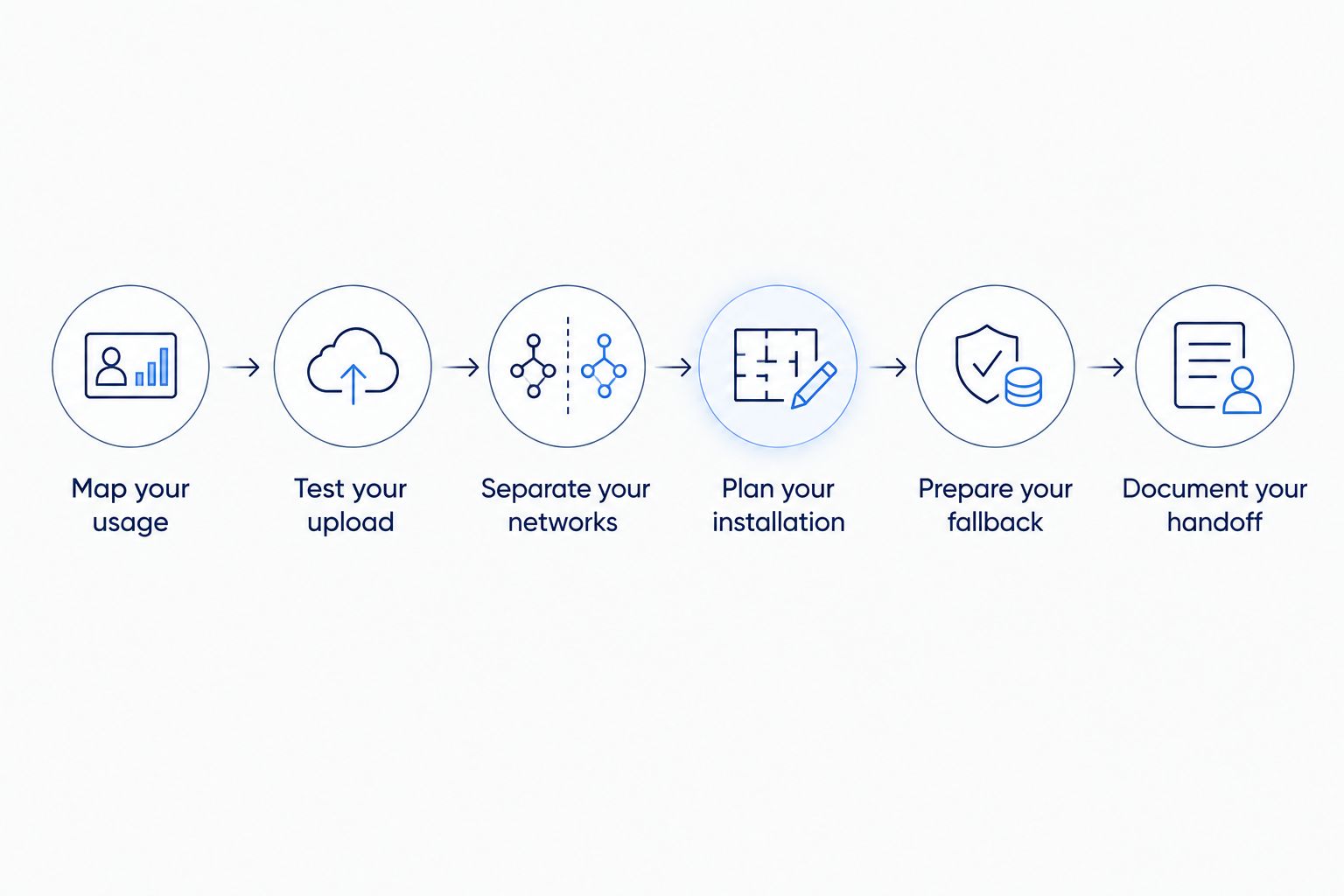
Map your usage
Begin with a simple worksheet, not a shopping list. Walk through a normal service and identify every activity that depends on internet access: the outgoing stream, online check-in, presentation downloads, office work, and visitor WiFi where those activities apply.
Separate essential tasks from convenient ones. A volunteer downloading a large media file should not compete unchecked with the worship stream, and a guest connection should not provide access to church records.
Count activities happening together rather than adding every device the church owns. A tablet sitting unused in a cupboard does not create the same demand as an active video upload. Note where people actually use each device, too.
- List the tasks that must continue during worship.
- Record which devices send video, receive video, or sync files.
- Mark offices, classrooms, gathering areas, and the production position on a floor plan.
- Identify staff and volunteer owners for each essential system.
- Write down recurring problems, including their location and time.
Test your upload
Use the existing connection to establish a baseline before choosing a replacement. Connect the streaming computer or encoder by Ethernet, pause unrelated transfers, and measure upload as well as download performance. Record the test conditions so the result means something later.
Then rehearse the actual workflow. As a practical test, run a 30-minute rehearsal with normal audio, video, slides, and representative background use. Watch the streaming software for dropped frames and ask someone outside the building to check the received program.
Video leaving your church uses upload capacity. Advice about internet speed for streaming in 4K helps distinguish viewing demand from the separate demands of broadcasting a service.
Use your streaming platform's current encoder guidance to set the stream, then ask providers to explain how the proposed upload service supports that workload. Don't assume every fiber plan has identical upload and download rates.
- Record wired download, upload, and connection responsiveness.
- Compare a quiet-building test with a realistic rehearsal.
- Check encoder warnings and the remote viewer's experience.
- Note other uploads, including cloud backups and camera transfers.
- Share the test results and encoder settings when requesting proposals.
Separate your networks
Start by checking the equipment you already have. Look for guest-network settings, confirm who holds the administrator credentials, and identify which devices are connected by cable rather than WiFi.
Create separation between public access and church systems. Staff records, giving administration, and check-in tools should not sit on the same unrestricted network as visitors' personal devices. A different network name alone does not prove that access between networks is blocked.
Sumofiber offers managed WiFi alongside business internet, making it an option for churches that want a provider involved in wireless management. Confirm the scope rather than assuming the service includes every security setting, access point, or ongoing task. A self-managed network gives your team direct control, but also leaves configuration and upkeep with your team.
- Keep guest access separate from staff and operational devices.
- Use Ethernet for the streaming encoder or production computer where practical.
- Ask for coverage checks in the rooms people actually use.
- Confirm who updates equipment and changes administrator access.
- Test that guest devices cannot reach private church systems.
Plan your installation
Before ordering, trace how service will enter the property and reach the equipment location. Identify who can approve building work, unlock utility areas, and answer questions about existing wiring. If the church rents its space, involve the property owner before committing to physical changes.
Ask the provider to confirm the exact service address and building requirements. A nearby fiber route does not establish that your sanctuary, office, or detached classroom has a usable connection.
For a 2026 installation, schedule acceptance testing before moving essential activities off the old setup. A working handoff in a utility closet is not the same as a tested livestream from the production desk. Verify the whole path.
- Confirm the service address and any building-access permissions.
- Agree on the equipment location, cable route, and power needs.
- Identify who handles inside wiring and any building repairs.
- Test the wired connection and important wireless locations.
- Keep existing service until the replacement passes your operational checks.
Prepare your fallback
Write a manual response first. Decide who announces a streaming interruption, who checks the connection, and how the service continues for people in the room. Keep a local recording so the church has a copy even if the live broadcast fails.
Backup internet is a separate decision. Cellular failover needs compatible equipment, usable reception at the building, and a test of the outgoing stream. A mobile phone showing signal bars does not establish that your production setup can broadcast through a backup connection.
Power deserves its own check. Fiber equipment, the router, network switches, and the encoder need electricity; protecting only the computer leaves other points of failure. Ask a qualified installer to size backup power for the equipment you need to keep running.
- Record the service locally when your production setup supports it.
- Assign one person to decide when to stop troubleshooting live.
- Test backup connectivity with the actual encoder and destination.
- Document which equipment needs backup power.
- Keep support details accessible without an internet connection.
Document your handoff
Create a short operating sheet that another volunteer can follow. Include the normal startup order, the streaming destination, the equipment locations, and the symptoms that require provider support rather than repeated restarts.
Set a 15-minute pre-service check as an operating routine, not a promise that every problem can be fixed in that time. Confirm audio reaches the stream, the encoder has a wired connection, and the local recording is ready. The goal is to find preventable problems before the service starts.
During 2026, update the sheet whenever equipment, passwords, or responsibilities change. Store credentials in a church-controlled password manager rather than in the public volunteer document. Give a second authorized person access so the system does not depend on one unavailable volunteer.
- Write the startup and shutdown sequence in plain language.
- List the provider contact and the information needed to report trouble.
- Record a known-good encoder setup without exposing passwords.
- Assign responsibility for account access and equipment updates.
- Rehearse the handoff with someone who did not build the system.
Compare your church's connection options
Best for depends on what your building can support and what your church must keep running. Compare written service details, not technology labels alone. For a 2026 proposal, ask each provider to explain upload service, support responsibilities, equipment, and any service commitments in writing.
The options below solve different problems. Managed WiFi improves how the building's wireless network is operated; it does not replace the internet connection entering the property.
| Option | Best for | Main advantage | Key limitation |
|---|---|---|---|
| Business fiber | Churches sending live video while staff and visitors are online | Fiber plans can provide substantial upload capacity; check the specific service | Fiber alone does not fix indoor WiFi, power loss, or production equipment |
| Cable internet | Churches whose measured workload fits the quoted upload service | An alternative to assess against the church's real tasks | The quoted upload rate needs separate scrutiny from download speed |
| Fixed wireless | Buildings where a suitable wired connection is not practical | Provides an alternative access path without a wired last-mile connection | Performance depends on the particular service and site conditions |
| Cellular backup | Churches that need a fallback for selected essential tasks | Adds another connection path when configured and tested | Requires reception, compatible equipment, and a workload the backup can carry |
| Managed WiFi with internet service | Churches without a regular network administrator | Gives the church a provider to ask about wireless management | Management scope varies; confirm responsibilities and exclusions |
Bring the same worksheet to every provider conversation. Ask what is included, what remains the church's responsibility, and how a service problem is escalated. No technology label establishes an uptime guarantee or a repair deadline.
Common mistakes churches make
Buying download speed for an upload job
A livestream sends video out of the building. Choosing only by download speed leaves the church's main broadcast requirement unanswered. Compare the proposed upload service with your actual encoder settings and concurrent uploads.
Treating a larger plan as a WiFi repair
Poor coverage in a classroom or balcony needs a building-network diagnosis. Test a wired device first, then compare wireless results at the problem location. That separates a connection issue from a coverage or equipment issue.
Testing only when the building is empty
An empty sanctuary does not reproduce a service with visitors, volunteers, and connected devices. Rehearse with representative activity and get a remote viewer's feedback. A speed-test screenshot alone does not show whether the outgoing audio and video remain usable.
Leaving the network in one volunteer's account
Personal email addresses, undocumented passwords, and unknown administrator access make handoffs difficult. Put ownership with the church and document authorized access. Volunteers should be able to change without forcing a complete account recovery.
FAQ
What's the best fiber internet setup for a church livestream?
Choose a connection with upload service that supports your encoder settings, and connect the encoder by Ethernet. Separate guest traffic from church systems, then rehearse the stream with realistic background activity.
How much internet speed does a church need?
A church needs enough capacity for its simultaneous activities, especially outgoing video. Use the streaming platform's current guidance, measured background use, and a realistic rehearsal rather than choosing solely by attendance.
Is fiber internet better than cable for churches?
Fiber is the stronger choice when its quoted upload service better fits the church's broadcasting workload. Compare the actual plans, support terms, and building requirements; the technology name alone does not settle the decision.
Can a church use the same WiFi for guests and staff?
Churches should separate guest access from staff and operational systems. Confirm that the network blocks guest access to private devices rather than merely displaying different network names.
Does Sumofiber offer internet and managed WiFi?
Sumofiber offers business internet and managed WiFi. Ask the provider to confirm service for the church building and explain which installation, equipment, and management responsibilities apply.
Does fiber keep working during a power outage?
An on-site power outage can interrupt fiber internet because the connection equipment and local network require electricity. Backup power must cover the necessary equipment, and it does not resolve an outage elsewhere in the network.
Should a church get backup internet for Sunday services?
Backup internet is appropriate when losing the live connection would disrupt an essential activity. Test the backup with the actual streaming setup, and keep a local recording whether or not a backup connection is used.
One last thing
Test the stream from outside the church network. A picture that looks right on the production screen does not prove remote viewers are receiving usable audio and video.
For your next 2026 rehearsal, ask an off-site volunteer to watch a 60-second sample containing speech, music, and a slide change. Have that person report what arrived, not what the encoder preview showed. This is a practical check of the experience your homebound members actually receive.