
Fiber internet for daycare centers is a fiber-optic connection that supports everyday tasks such as attendance, parent updates, and online administration, with the aim of keeping those tasks running without interrupting care. Your 2026 plan needs to account for classroom coverage, sensitive family information, and what staff will do when the connection stops—not just the speed advertised on a plan.
- Choose fiber internet for daycare centers by upload needs, classroom coverage, and outage procedures—not download speed alone.
- Sumofiber offers business fiber internet and managed WiFi; confirm the service details for your daycare’s address.
- Separate staff, guest, and connected-device traffic, and test essential tasks before switching providers.
Why fiber internet matters for daycare centers
A daycare’s internet supports work that happens around children, not instead of caring for them. If your center uses digital check-in, parent messaging, cloud records, or connected cameras, those systems belong in the same connection plan.
The distinction is internet service brings connectivity into the building; WiFi distributes it around the building. A faster plan does not fix a weak signal in the toddler room. Start with this guide to small-business bandwidth needs before comparing plans.
For your 2026 review, separate inconvenience from operational disruption. A delayed classroom download is different from an unavailable attendance system. Give each task an owner, a connection requirement, and an offline alternative where one exists.
How to choose and set up daycare fiber internet
1. Map the tasks that need a connection
Start with a shared document or paper checklist. Ask the director, front-desk staff, and classroom leads what they use during arrival, classroom activities, rest periods, and pickup. Record actual tasks rather than writing down every device as though it creates the same demand.
Include systems that work quietly in the background. A camera uploading recordings has a different traffic pattern from a tablet sending an attendance update. Confirm whether recordings stay onsite or leave the building; do not assume every camera uses cloud storage.
Mark which tasks must continue during an outage and which can wait. This gives you a useful brief for providers without buying monitoring software first.
- List attendance, billing, parent messaging, and administrative applications.
- Record where staff use tablets, laptops, and phones.
- Identify cameras, entry systems, and other connected equipment you actually have.
- Mark tasks that send files or video outside the building.
- Assign an offline procedure to essential tasks where practical.
2. Measure the busy period before choosing speed
Use your existing connection to establish a baseline. Run a speed test on a wired computer, then repeat the relevant tasks over WiFi in the rooms where staff work. Keep internet performance and wireless coverage in separate columns.
Record download speed and upload speed in Mbps, plus response time in milliseconds. Download speed affects incoming files and video; upload speed affects outgoing files and cloud uploads. Response time describes how long a request takes to receive a response.
For your 2026 assessment, run a 10-minute observation during an actual busy period. This is a suggested test window, not a bandwidth requirement. Note whether slowdowns affect one device, one room, or the whole center before deciding that a larger plan is the answer.
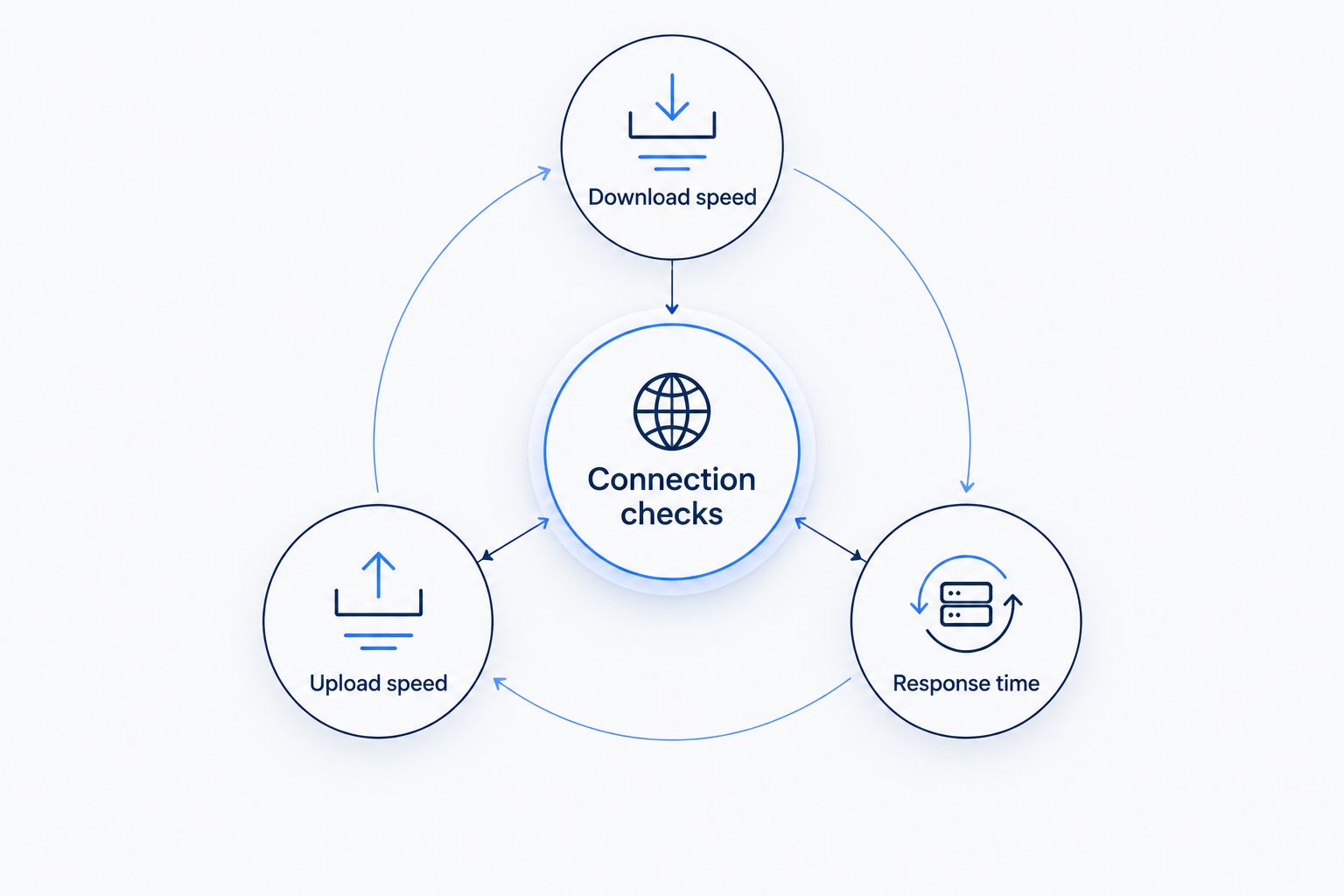
Use the same test device when comparing rooms. Changing both the device and its location makes the results harder to interpret.
- Connection checks: record the room, device, time, and task.
- Download speed: test incoming traffic while normal work continues.
- Upload speed: check outgoing traffic during your usual uploads.
- Response time: record delays alongside visible application problems.
- Repeat measurements at the front desk and your weakest classroom location.
3. Verify the address and compare service responsibilities
Start by asking providers to confirm the exact service address, including the suite or unit. A city listed in a provider’s service area does not establish that your building can be connected. For a rented center, ask the landlord about access, drilling, and equipment placement before booking installation.
Sumofiber offers business internet and managed WiFi across its stated service footprint in Utah, Idaho, Montana, Colorado, California, Wisconsin, Illinois, and New York. Sumofiber is best suited to daycare operators comparing business fiber internet and managed WiFi from one provider. Confirm the scope of both services for your address.
For a 2026 proposal, ask who handles the connection, wireless equipment, configuration changes, and fault diagnosis. A service name alone does not establish those responsibilities. Managed WiFi is useful when you want outside help, but you still need a clear boundary between provider work and your own equipment.
- Confirm the building, suite, and installation requirements.
- Request download and upload specifications separately.
- Ask who supplies and maintains each piece of equipment.
- Document support contacts and the escalation process.
- Review service commitments and cancellation terms in writing.
4. Design coverage around rooms and privacy
Sketch the floor plan yourself before discussing access-point placement. Mark classrooms, the office, check-in areas, walls, and existing network connections. Include outdoor areas only if staff need connectivity there; coverage should follow a real task.
Plan 3 separate networks: staff, guests, and connected devices. This is a recommended starting design, not a rule about how many network names your daycare must broadcast. Ask whoever configures the equipment to establish the separation behind those networks and test it. Different WiFi names alone do not prove isolation.
Wireless coverage and access controls solve different problems. Strong reception helps a tablet connect; account permissions determine what its user can see. Review both before handing devices to staff.
- Place access points around occupied rooms, not just a convenient outlet.
- Keep visitor devices away from staff records and administrative equipment.
- Restrict camera access to approved users.
- Use individual staff accounts where applications support them.
- Remove access when staff leave or change responsibilities.
5. Build an outage plan that staff can follow
Write the offline procedure before buying backup equipment. Decide how you will record attendance, reach authorized contacts, and communicate internally without the main connection. Keep necessary offline information controlled and current rather than leaving sensitive records openly accessible.
Cellular backup provides another connection path, but it does not solve every failure. Its usefulness depends on indoor reception, compatible equipment, configuration, and the tasks you expect it to carry. Test those conditions instead of assuming that a phone signal at the front door proves coverage throughout the building.
Power needs separate attention. A working outside network does not keep an unpowered router, access point, or connected phone operating. Ask an equipment professional to identify what requires backup power and how to test it safely.
- Define which tasks continue offline and who directs the response.
- Keep an approved alternative method for reaching families.
- Test cellular reception where backup equipment would sit.
- Identify the equipment that requires backup power.
- Practice returning to normal service and reconciling offline records.
6. Schedule installation around care routines
Prepare a room-by-room installation brief before the appointment. Mark acceptable equipment locations, cable routes, and areas installers cannot enter while children are present. Coordinate building access with the landlord or facilities contact if permission is required.
Do not cancel the current service before the replacement is installed and tested. An overlapping changeover lets you check real tasks rather than treating a successful speed test as proof that the center is ready.
Use 2 test locations at minimum: the front desk and the weakest classroom. Add other rooms with essential connected equipment. This is an acceptance-check recommendation, not a claim that two locations prove whole-building coverage. Test the applications staff actually depend on, including sending a parent update and completing your attendance workflow.
- Confirm access permissions and the installation contact.
- Agree on equipment placement before work begins.
- Keep cables and equipment out of children’s reach.
- Test essential applications on the new connection.
- Confirm any phone-service transition before disconnecting the old service.
7. Assign ownership and review changes
Keep a simple network record with equipment locations, provider contacts, administrator access procedures, and the person responsible for each system. Store credentials securely, separate from a general staff handout. Give employees the troubleshooting steps they need without distributing administrator access unnecessarily.
For the rest of 2026, review the setup whenever you add a classroom, camera, application, or group of devices. A connection that supported yesterday’s workload still needs reassessment when the workload changes.
Record problems by task and location. “The preschool tablet could not upload photos during pickup” gives a technician more to investigate than “the internet is bad.” Staff should have a clear reporting route so the director is not the only person who knows what to do.
- Name a primary network contact and a backup contact.
- Store equipment details and support information securely.
- Log the time, room, device, and affected application for faults.
- Review access when staffing changes.
- Retest coverage after layout or equipment changes.
Compare connection and WiFi options
Choose the outside connection and the inside network as separate decisions. Fiber, cable, and cellular describe connection options; managed WiFi describes help with the wireless network inside your center. They are not interchangeable purchases.
| Option | Best for | Main benefit | Key limitation |
|---|---|---|---|
| Business fiber internet | Centers with a serviceable address and simultaneous online tasks | A fiber-optic connection for the center’s internet traffic | Does not fix classroom WiFi coverage or provide power backup |
| Business cable internet | Centers assessing an alternative fixed connection | Supports everyday business applications | Upload specifications and service commitments need separate review |
| Cellular backup | Essential tasks during a primary-connection outage | Provides an alternative connection path | Depends on local reception, equipment, power, and configuration |
| Self-managed WiFi | Centers with a capable person responsible for the network | Keeps configuration and troubleshooting under your control | Your team owns maintenance and fault diagnosis |
| Sumofiber managed WiFi | Operators comparing provider-managed wireless service | Offers a managed WiFi service alongside business internet | Exact management responsibilities must be confirmed before ordering |
Ask each provider to respond to the same task list and floor plan. Comparing matching requirements is more useful than comparing different bundles with different responsibilities.
Discuss your daycare’s connection needs
Bring your address, floor plan, and essential-task list to a business internet conversation.
Common mistakes daycare centers make
Buying speed to fix a weak classroom signal
A higher service speed does not remove a coverage problem caused by access-point placement or building layout. Compare a wired test with a test in the affected classroom before changing the plan. Investigate the wireless network when the problem follows a room rather than every device.
Treating camera traffic as a download-only task
Cloud-connected cameras can send traffic out of the building. Local recording and remote viewing introduce different requirements. Ask your camera supplier how the actual system works, then include that behavior in your upload assessment.
Sharing one password with staff and visitors
A shared network makes it harder to control who connects and what those devices can reach. Separate visitor access from operational systems, and verify the configuration. Do not treat a hidden network name as a substitute for access controls.
Assuming backup internet keeps everything working
A backup connection is not a complete continuity plan. Equipment still needs power, applications still need access, and staff still need instructions. Test the exact attendance and communication tasks you intend to preserve.
FAQ
What is the best internet setup for a daycare center?
The best setup supports your essential applications, reaches the rooms where staff work, and includes an outage procedure. Compare the connection, WiFi coverage, access controls, and backup arrangements separately.
How much internet speed does a daycare center need?
Choose speed from the center’s simultaneous tasks and measured usage, not enrollment alone. Inventory uploads, video calls, connected cameras, and administrative applications, then compare those needs with each plan’s download and upload specifications.
Does fiber internet automatically improve classroom WiFi?
No. Fiber supplies the building’s internet connection, while access points distribute wireless coverage inside. Test the affected classroom and a wired device separately to identify which part needs attention.
Is managed WiFi useful for a daycare without an IT employee?
Managed WiFi is worth comparing when no employee is responsible for maintaining the wireless network. Sumofiber offers managed WiFi, but you should confirm the included configuration, maintenance, and troubleshooting responsibilities before choosing it.
Should parents and staff use the same WiFi network?
Keep visitor access separate from staff systems and sensitive records. Have the configuration checked so visitor devices cannot reach protected equipment; different network names alone do not establish that separation.
Will daycare cameras work during an internet outage?
Camera operation during an outage depends on power, recording location, and the camera system’s design. Verify local recording, remote viewing, and backup behavior with the camera supplier, then test your own setup.
Can a home-based daycare use residential fiber internet?
Check the provider’s residential service terms before using the connection for a home-based daycare. Also confirm that the support arrangements, equipment, and network separation meet your operational needs rather than assuming residential and business service are identical.
One last thing
Make your final 2026 acceptance check a real working moment, not an empty-building speed test. Have the front desk complete attendance while an authorized staff member sends a parent update from the weakest classroom. Check any other essential system at the same time.
Keep the old connection until the new setup passes your essential-task checklist. The useful result is staff completing their work where they actually do it—not a large number on a test screen.