
Instead of asking coworkers to pause uploads whenever a video meeting freezes, set up a wired calling connection, separate guest traffic, and test recovery before your next important call. This 2026 workflow helps you reduce dropped calls and identify the cause when they happen; no business internet connection guarantees zero interruptions.
- For video conferencing zero dropped calls business internet planning, treat zero interruptions as a goal, not a guarantee.
- SumoFiber offers business fiber internet and managed WiFi for offices that want both services from one provider.
- Start with Ethernet, compare WiFi under the same workload, and record failures before changing settings.
- Test backup recovery separately: restoring internet access does not guarantee an existing meeting stays connected.
Why this matters
A frozen meeting does not automatically mean your internet plan is too slow. The problem can sit between your laptop and access point, inside your office network, at the internet connection, or beyond it.
SumoFiber is best for businesses seeking fiber internet and managed WiFi from one provider. SumoFiber offers both services, but that does not remove the need to check cables, coverage, competing uploads, and meeting devices.
The useful outcome of this 2026 workflow is a repeatable calling setup and a clear fault record. More speed alone does not fix a loose cable, a weak wireless connection, or a laptop that disconnects when it sleeps.
Before you start
- Gather access and equipment. Have your meeting account, a laptop with a working Ethernet connection or adapter, an Ethernet cable, and permission to change that laptop's network settings. Arrange administrator access or help from whoever manages your router and WiFi.
- Arrange a realistic test. Ask a colleague outside the office to join a test meeting. Keep a shared incident log with the time, location, connection type, symptoms, and changes made.
- Check the backup gotcha first. A cellular backup requires compatible routing equipment and a configured connection. Moving traffic to another connection can interrupt an active meeting, even when general internet access returns.
The laptop instructions below use Windows 11 labels. Router and meeting-app menus differ, so use the equipment's documentation rather than searching for a supposedly universal call-priority button.
Your baseline and incident record
Establish a baseline before adjusting the network. Otherwise, you cannot tell which change helped.
- Record the setup. Note the laptop, meeting application, desk or room, connection type, and whether a VPN is connected. Keep confidential meeting content out of the log.
- Start a 15-minute test meeting. Use a colleague outside your office so the call crosses the internet connection. Treat this duration as a practical test window, not a reliability certification.
- Exercise the meeting normally. Turn on your camera, speak in both directions, and share a screen. Ask the other participant to report missing audio or frozen video.
- Record the exact symptom. Distinguish a frozen picture from lost audio, a disconnected participant, and a meeting application that closes. These are different problems.
- Note the time and time zone. Include whether other people in the office lost access at the same moment. That detail helps separate a single-device fault from a shared connection problem.
Expected result: You have a starting record describing what failed, where it failed, and whether the failure affected more than one device.
Do not change the router, replace an adapter, and update the meeting application together. Make one change, then repeat the same test. That keeps a useful improvement from getting buried among unrelated adjustments.
Your wired calling connection
Ethernet removes the wireless link from the test. It does not remove every possible failure, but it gives you a cleaner starting point.
- Connect the laptop. Run an Ethernet cable to an authorized office network port or router LAN port. Do not connect directly to provider equipment unless your network administrator instructs you to do so.
- Confirm the wired connection. In Windows 11, open Settings, select Network & internet, then open Ethernet. Check that the wired interface is connected.
- Isolate the test path. Under Network & internet, turn Wi-Fi off for this test. Keep Ethernet connected so you know which connection carries the call.
- Repeat the baseline meeting. Use the same laptop, meeting application, and outside participant. Keep the camera and screen-sharing activity comparable.
- Compare the observations. If Ethernet works while WiFi repeatedly fails, investigate wireless coverage, interference, or access-point behavior before changing the internet service.
Expected result: You know whether the problem remains when the laptop no longer depends on WiFi.
A passing wired test does not prove the entire internet service is fault-free. It narrows the investigation. An intermittent problem still needs observation during the hours when it normally appears.
For a fixed conference-room computer, keep Ethernet as the default connection when practical. The trade-off is physical: you need a usable cable route, an appropriate port, and an adapter if the device lacks one.
Your office traffic and WiFi configuration
Next, test what happens when the office is working normally. A quiet-room test misses the conditions that interrupt a busy afternoon meeting.
- Identify concurrent activity. Check for cloud backups, large file transfers, camera uploads, and guest use around the failure time. Ask the network administrator to review traffic rather than guessing from the number of connected devices.
- Separate guest access. Put visitors on an appropriately isolated guest network. Follow the guest WiFi separation workflow if your equipment supports the required controls.
- Review upload scheduling. Move nonessential bulk transfers outside important meeting windows where business operations allow it. Do not interrupt security or backup tasks without the responsible person's approval.
- Review traffic controls with the administrator. If your router supports Quality of Service, use its documented configuration. Prioritization manages contention; it does not create additional internet capacity or fix a failed connection.
- Retest from the actual calling location. For wireless users, test at the desk or conference table where calls happen, with doors and room use matching normal conditions.
Expected result: You have checked both the calling connection and the competing traffic around it, rather than treating every freeze as an internet-speed problem.
Use the same sequence throughout your 2026 troubleshooting: establish the baseline, isolate the connection, review competing traffic, and verify recovery.
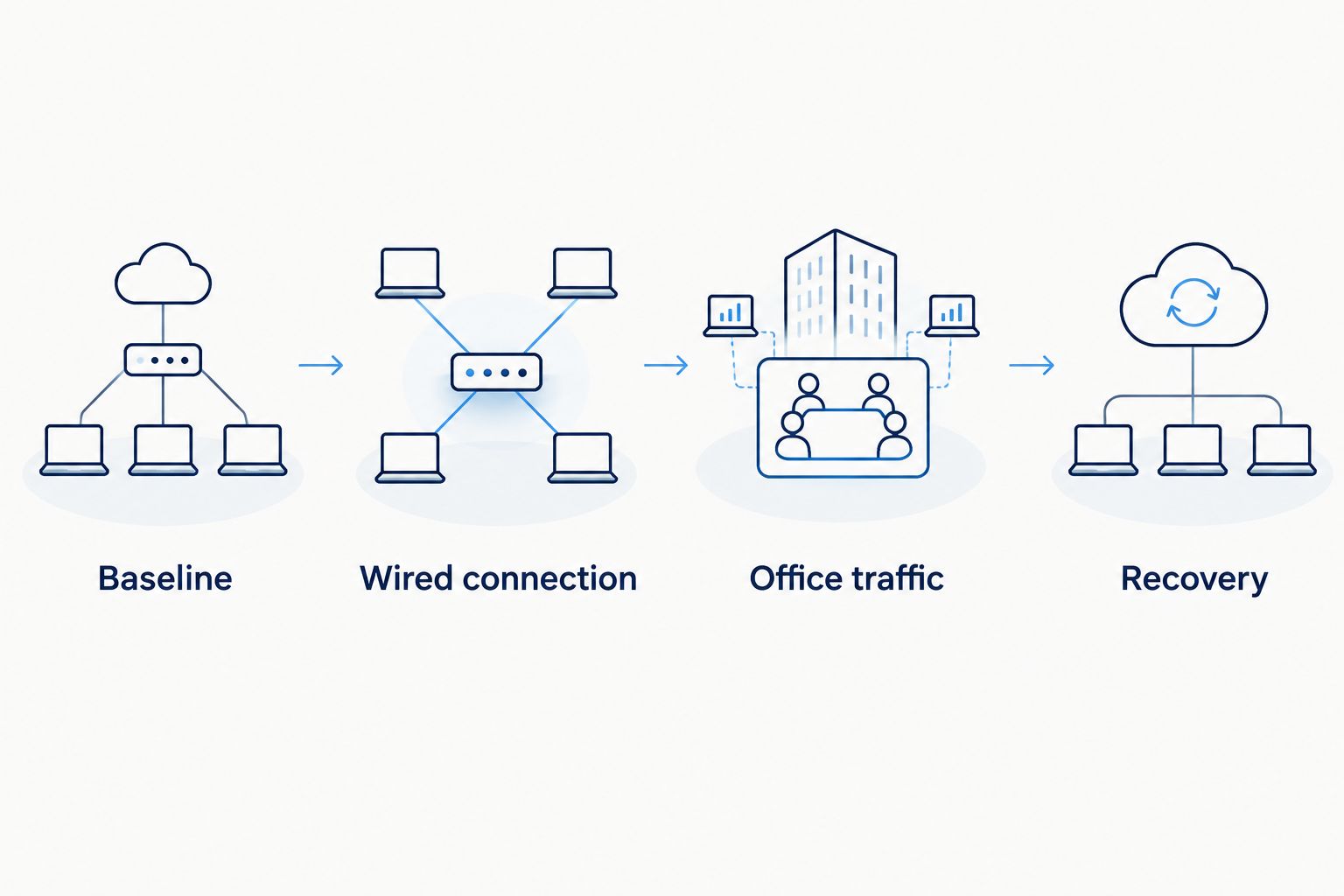
Guest isolation improves separation between visitors and business devices. It does not automatically reserve bandwidth for meetings. Those are separate configuration decisions, and each needs its own test.
Your validation and recovery routine
Finish with evidence from normal work, not just a successful speed test. A speed test measures a short sample; your meeting needs a usable connection throughout the conversation.
- Run 3 test calls under different conditions. Include a quiet period, a normally busy period, and the room or desk associated with complaints. This is a recommended starting checklist, not proof that future calls cannot fail.
- Document the outcome. Record disconnected calls, missing audio, frozen video, and whether the issue affected everyone or only one participant. Include successful tests so the record shows what changed.
- Test recovery in an approved window. If backup connectivity exists, have the administrator perform the documented failover test. Do not disconnect business equipment during customer calls or transactions.
- Observe the meeting itself. Check whether the active call continues, reconnects, or needs to be rejoined. A browser loading after failover is not enough to verify meeting continuity.
- Write the fallback instruction. Tell staff how to rejoin, who to notify, and which approved alternative to use when the primary connection fails.
Expected result: You know which calling setup works under tested conditions and what staff should do when it does not.
For your 2026 operating checklist, keep call recovery separate from internet recovery. They are related outcomes, not interchangeable ones.
Second workflow: repeat the test after a network change
Repeat the relevant tests whenever you move a conference room, replace a router, change an access point, or introduce a new backup connection. A previously working setup does not validate a changed one.
Use the following options according to the actual calling environment. Each solves a different part of the problem.
| Connection option | Best for | Advantage | Limitation | Recommendation |
|---|---|---|---|---|
| Ethernet | Fixed desks and conference rooms | Removes wireless coverage and interference from the local link | Requires cabling and a suitable port or adapter | Use as the baseline |
| Managed WiFi | Staff who move between work areas | Gives a responsible operator control of the wireless network | Still depends on coverage, configuration, and the upstream connection | Verify at calling locations |
| Cellular backup | Internet recovery during a primary-link outage | Provides an alternative connection when correctly configured | Depends on coverage and equipment; active calls can disconnect during switching | Test recovery before relying on it |
This is not a speed ranking. Ethernet is the starting point for diagnosis; backup connectivity is a recovery measure. Neither substitutes for the other.
After a change, repeat the same meeting actions and update the incident record. If a new access point fixes a conference-room problem, preserve that result instead of continuing to alter unrelated settings.
Troubleshooting
Ethernet works, but WiFi calls freeze
Focus on the wireless path. Test closer to the access point, compare another device in the same room, and ask the administrator to review coverage and wireless conditions.
Avoid buying a faster internet plan as the first response. A plan change does not repair poor radio coverage between the laptop and access point.
Calls break up during large uploads
Check whether the symptoms line up with bulk transfers. Repeat the call after an approved pause or schedule change, then compare the result.
If the problem disappears, review upload demand and traffic management with the administrator. Do not apply arbitrary bandwidth limits without measuring the connection and considering other business tasks.
Only one laptop disconnects
Compare that laptop with another device on the same wired connection. Check the cable, adapter, operating-system updates, meeting application, and whether the laptop sleeps during a session.
If a VPN is involved, ask IT to investigate its behavior. Do not disable a required security control to make a meeting work.
Backup internet connects, but the meeting drops
The connection change can interrupt the application's existing session. Confirm whether the application reconnects automatically or requires the user to rejoin.
Record the behavior in your fallback instructions. Do not describe failover as uninterrupted calling unless the tested setup actually delivers that result under the tested conditions.
Everyone loses access at once
Check whether wired and wireless devices are affected, then contact the responsible network administrator or provider. Report the time, affected locations, equipment status, and any recent changes.
Avoid repeated restarts before collecting observations. Rebooting can remove useful diagnostic information and creates another interruption.
Customize your workflow
For a single conference room, start with its computer, cable, and calling location. For a larger office, repeat the process room by room rather than assuming one successful desk test represents the building.
SumoFiber business internet and managed WiFi are relevant when you want to discuss the upstream connection and wireless service together. The limitation remains the same: service selection alone does not validate endpoint behavior, room coverage, or call recovery.
Keep a short 2026 runbook beside the meeting equipment. Include the normal connection, the person responsible for network changes, and the approved rejoin procedure—not passwords or sensitive account details.
FAQ
Can business fiber internet guarantee zero dropped video calls?
No business fiber connection alone guarantees zero dropped video calls. Meetings also depend on local networking, device behavior, the meeting platform, and the other participants' connections.
Is Ethernet better than WiFi for business video meetings?
Ethernet is the better diagnostic baseline for a fixed meeting device because it removes the wireless link. WiFi remains useful for mobility, but you need to verify performance at the actual calling location.
Will a faster internet plan stop my meetings from freezing?
A faster plan does not fix every cause of frozen meetings. Check wired performance, competing uploads, wireless coverage, and the affected device before deciding that capacity is the problem.
Does cellular backup keep an active video meeting connected?
Cellular backup does not guarantee that an active video meeting stays connected. The application can lose its session during the connection change, so test whether it continues, reconnects, or requires rejoining.
What should I record when a business video call drops?
Record the time and time zone, device, room, connection type, and exact symptom. Include whether other users lost access and what network changes occurred before the failure.
Does SumoFiber offer business internet and managed WiFi?
SumoFiber offers business fiber internet and managed WiFi. Discuss your calling locations, concurrent workloads, and network responsibilities when evaluating the services for your office.
Should I turn on Quality of Service for video calls?
Use Quality of Service only when your equipment supports it and the administrator can configure and test it correctly. Prioritization helps manage contention but does not repair outages or add internet capacity.
One last thing
A meeting that stays connected while nobody can hear the speaker is not a successful call. Track usable audio alongside disconnects, and ask the outside participant what they experienced.
Make clear two-way conversation your acceptance test—not just an open meeting window. That recommendation keeps the workflow focused on the work your connection needs to support.